
Unbuntu系统下VScode中配置opencv(c++)环境
·
Ubuntu系统中配置好对应的环境后就是对vscode进行环境配置
详情请参考我的文章:Ubuntu20.04配置opencv(c++)环境-CSDN博客
一、新建vscode工程(这里就不多解释)
二、配置VScode
VScode一共需要配置三个文件:c_cpp_properties.json,launch.json,tasks.json
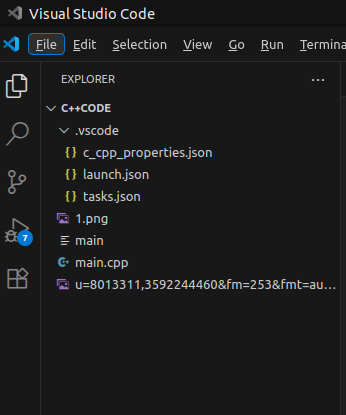
1、配置 c_cpp_properties.json文件
按下“ctrl+shift+p”,搜索打开如下图所示配置:
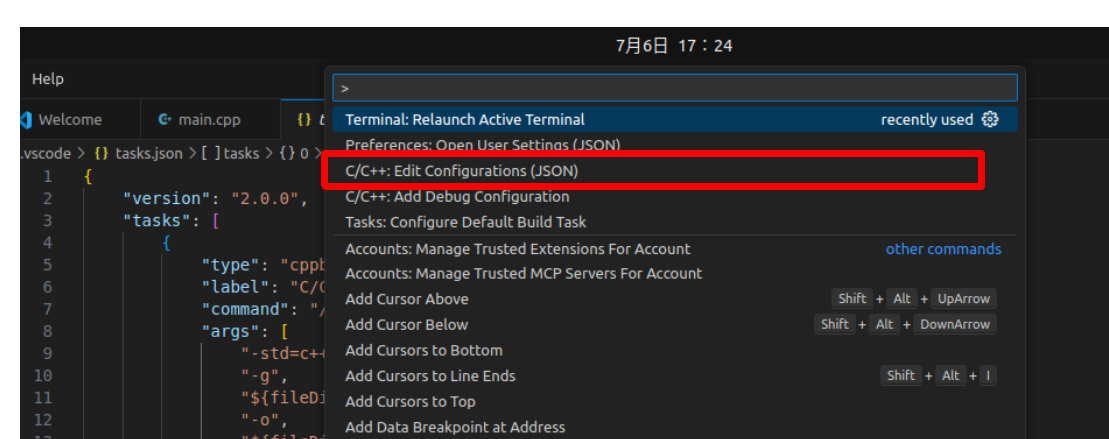
即c_cpp_properties.json文件,往里面添加opencv4路径:
"/usr/local/include/opencv4"
这里的路径要替换为自己的路径

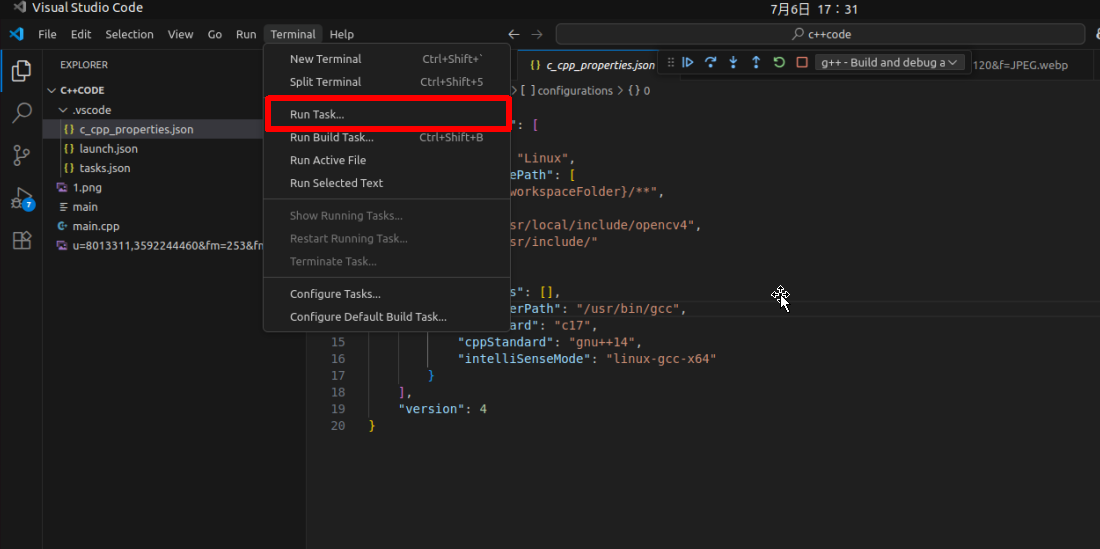
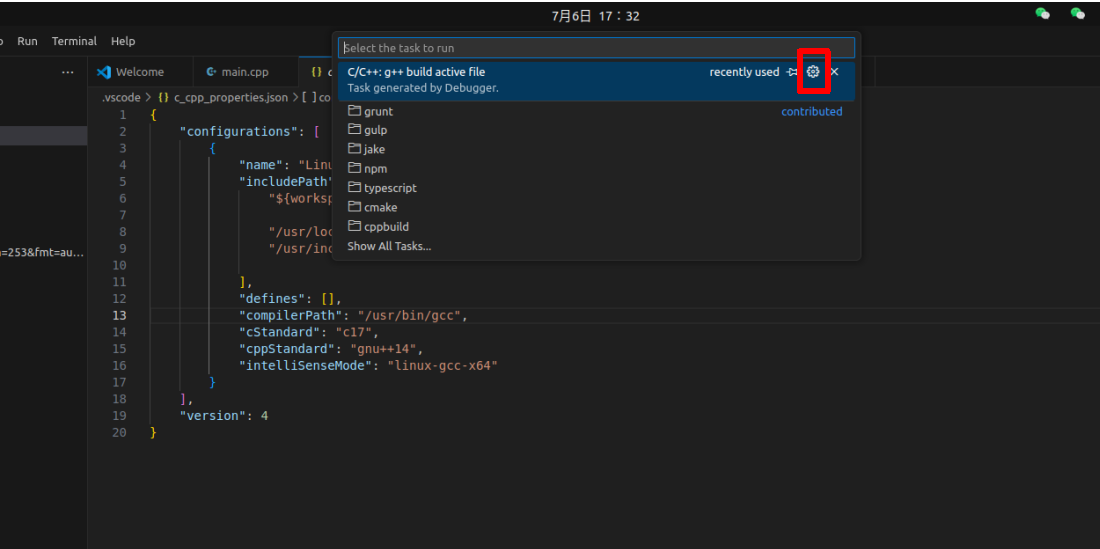
2、配置tasks.json文件:
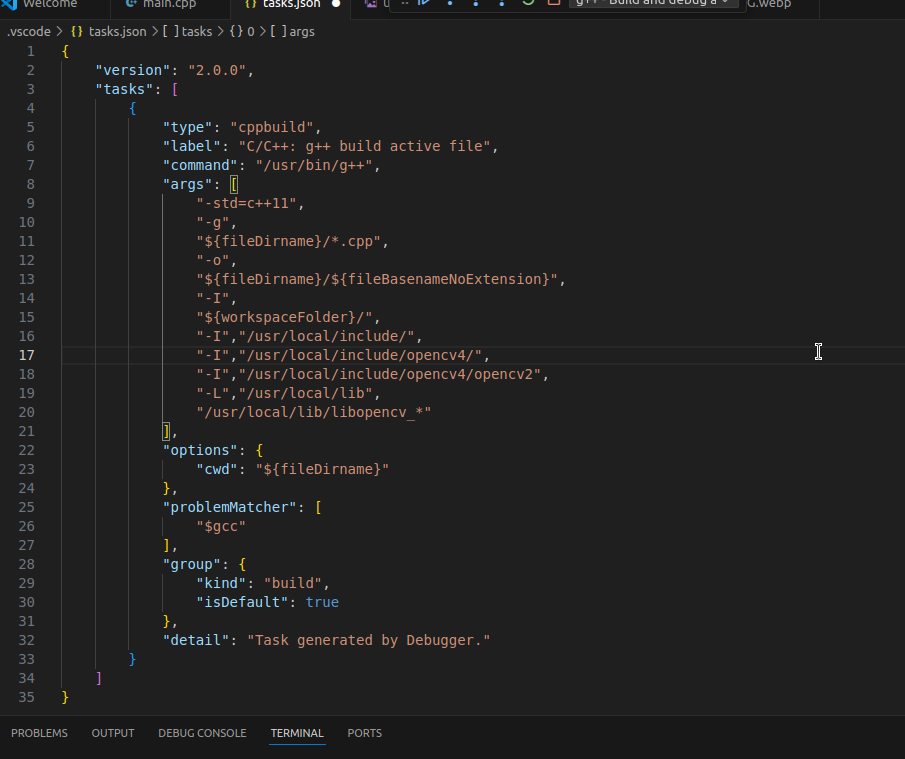
3、配置launch.json文件
按下“ctrl+shift+p”,搜索launch.json打开如下图所示配置:
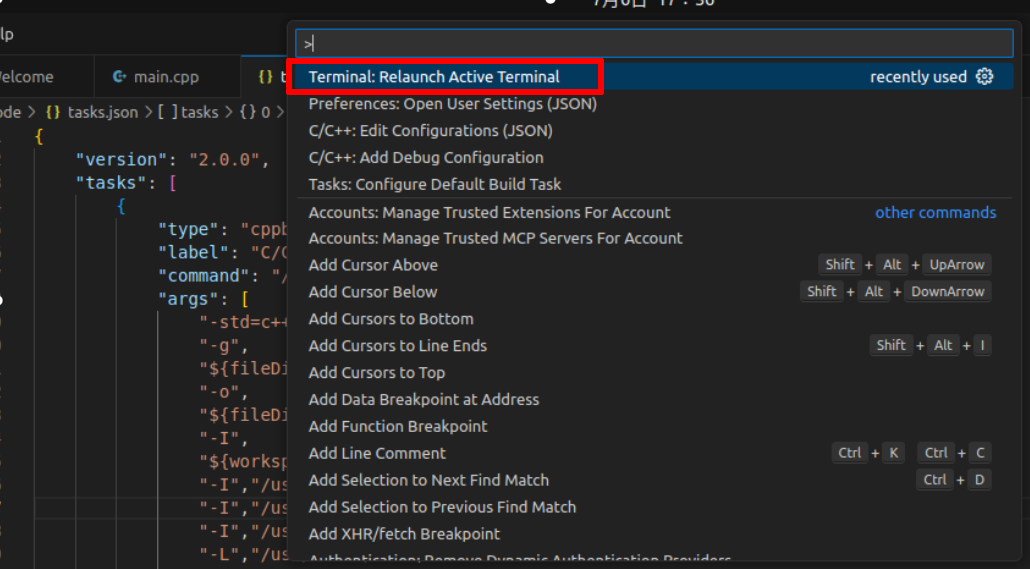

三、测试
在工作文件夹新建一个test.cpp,写一个测试代码,记得替换自己的图片路径
#include <opencv2/opencv.hpp>
#include <iostream>

using namespace std;
using namespace cv;

int main()
{
    Mat img = imread("/home/xlh/c++code/1.png", 1);
    namedWindow("img", WINDOW_FREERATIO);
    imshow("img", img);
    waitKey(0);
    destroyAllWindows();
    return 0;
}
按下ctrl+shift+b”,可以生成对应的二进制文件,我们在cd到对应的工程文件夹

或者直接运行这段代码:Run C/C++ file
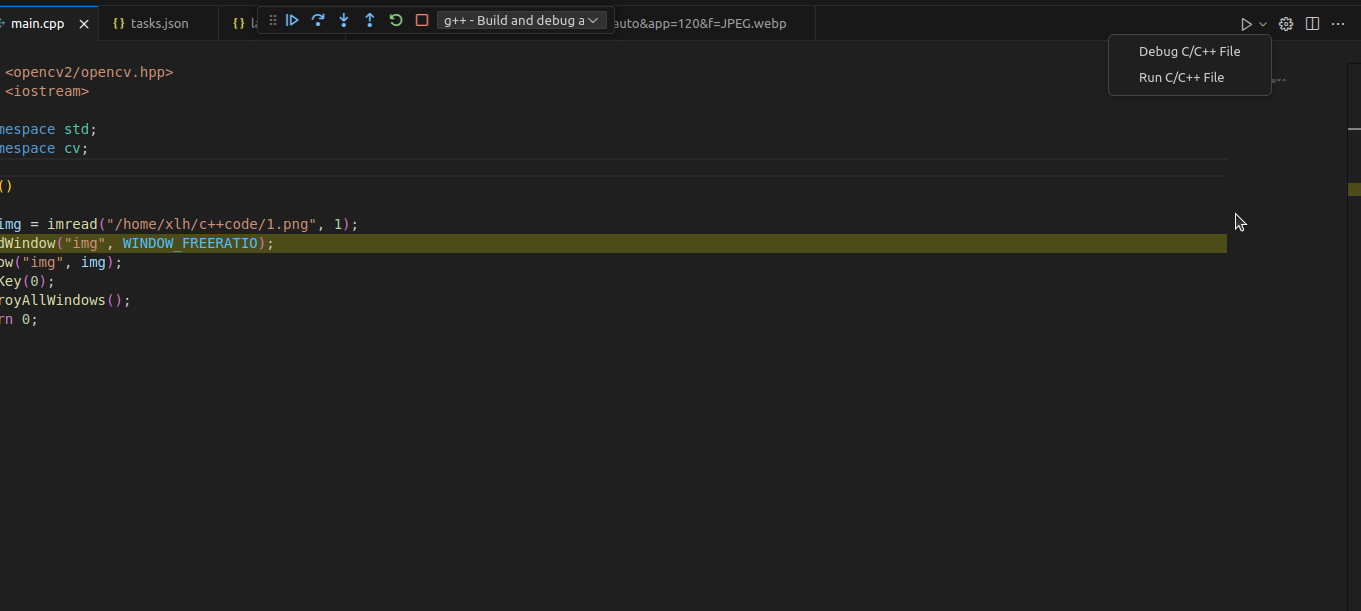
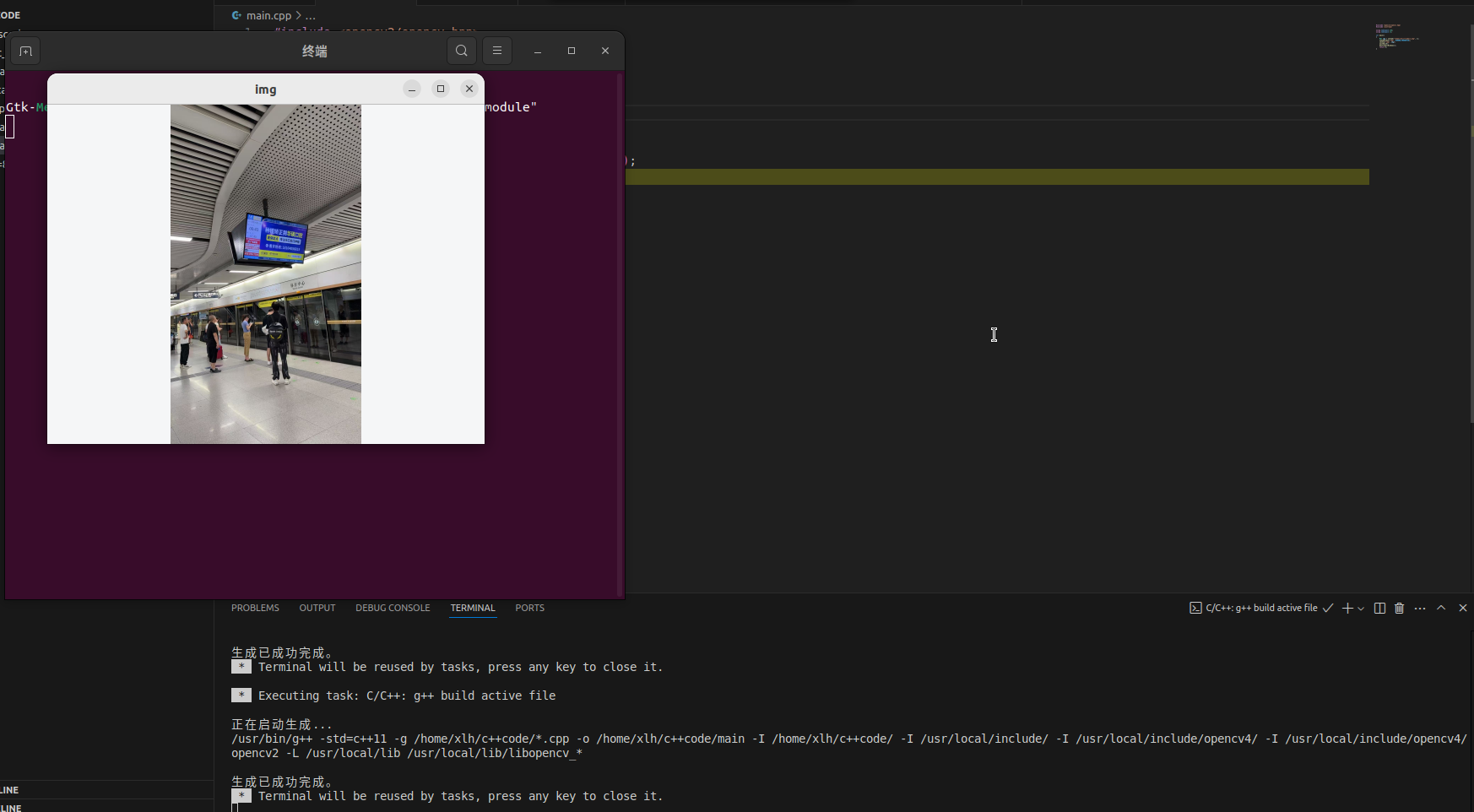
程序跑通,我们实现了在Ubuntu20.04中安装opencv并配置完成!
接下来就是去干opencv(c++)
附带三个文件的代码
c_cpp_properties.json
{
    "configurations": [
        {
            "name": "Linux",
            "includePath": [
                "${workspaceFolder}/**",

                "/usr/local/include/opencv4",
                "/usr/include/"

            ],
            "defines": [],
            "compilerPath": "/usr/bin/gcc",
            "cStandard": "c17",
            "cppStandard": "gnu++14",
            "intelliSenseMode": "linux-gcc-x64"
        }
    ],
    "version": 4
}
tasks.json
{
	"version": "2.0.0",
	"tasks": [
		{
			"type": "cppbuild",
			"label": "C/C++: g++ build active file",
			"command": "/usr/bin/g++",
			"args": [
				"-std=c++11",
				"-g",
				"${fileDirname}/*.cpp",
				"-o",
				"${fileDirname}/${fileBasenameNoExtension}",
				"-I",
				"${workspaceFolder}/",
				"-I","/usr/local/include/",
				"-I","/usr/local/include/opencv4/",
				"-I","/usr/local/include/opencv4/opencv2",
				"-L","/usr/local/lib",
				"/usr/local/lib/libopencv_*"
			],
			"options": {
				"cwd": "${fileDirname}"
			},
			"problemMatcher": [
				"$gcc"
			],
			"group": {
				"kind": "build",
				"isDefault": true
			},
			"detail": "Task generated by Debugger."
		}
	]
}
launch.json
{

    "version": "0.2.0",
    "configurations": [
        {
            "name": "g++ - Build and debug active file",
            "type": "cppdbg",
            "request": "launch",
            "program": "${fileDirname}/${fileBasenameNoExtension}",
            "args": [],
            "stopAtEntry": false,
            "cwd": "${fileDirname}",
            "environment": [],
            "externalConsole": true,
            "MIMode": "gdb",
            "setupCommands": [
                {
                    "description": "Enable pretty-printing for gdb",
                    "text": "-enable-pretty-printing",
                    "ignoreFailures": true
                }
            ],
            "preLaunchTask": "C/C++: g++ build active file",
            "miDebuggerPath": "/usr/bin/gdb"
        }
    ]
}
更多推荐


 5
 0
- 0


 已为社区贡献2条内容

所有评论(0)