一 概述
微信小程序中,与相机相关的组件是媒体组件camera
二 camera相关属性
| 属性 | 类型 | 默认值 | 说明 |
|---|
| mode | string | normal | 应用模式,只在初始化时有效,不能动态变更 |
| resolution | string | medium | 分辨率,不支持动态修改 |
| device-position | string | back | 摄像头朝向 |
| flash | string | auto | 闪光灯,值为auto, on, off |
| frame-size | string | medium | 指定期望的相机帧数据尺寸 |
| bindstop | eventhandle | | 摄像头在非正常终止时触发,如退出后台等情况 |
| binderror | eventhandle | | 用户不允许使用摄像头时触发 |
| bindinitdone | eventhandle | | 相机初始化完成时触发,e.detail = {maxZoom} |
| bindscancode | eventhandle | | 在扫码识别成功时触发,仅在 mode=“scanCode” 时生效 |
mode 的合法值
| 值 | 说明 |
|---|
| normal | 相机模式 |
| scanCode | 扫码模式 |
resolution 的合法值
device-position 的合法值
flash 的合法值
| 值 | 说明 |
|---|
| auto | 自动 |
| on | 打开 |
| off | 关闭 |
| torch | 常亮 |
frame-size 的合法值
| 值 | 说明 |
|---|
| small | 小尺寸帧数据 |
| medium | 中尺寸帧数据 |
| large | 大尺寸帧数据 |
三 示例代码
3.1 camera.wxml 布局文件
<view class="page-body">
  <view class="page-body-wrapper">
    <camera device-position="back" flash="off" binderror="error" style="width: 100%; height: 300px;"></camera>
    <view class="btn-area">
      <button type="primary" bindtap="takePhoto">拍照</button>
    </view>
    <view class="btn-area">
      <button type="primary" bindtap="startRecord">开始录像</button>
    </view>
    <view class="btn-area">
      <button type="primary" bindtap="stopRecord">结束录像</button>
    </view>
    <view class="preview-tips">预览</view>
    <image wx:if="{{src}}" mode="widthFix" src="{{src}}"></image>
    <video wx:if="{{videoSrc}}" class="video" src="{{videoSrc}}"></video>
  </view>
</view>
3.2 camera.js 逻辑文件 拍照和录像
Page({
  onLoad() {
    this.ctx = wx.createCameraContext()
  },
  takePhoto() {
    this.ctx.takePhoto({
      quality: 'high',
      success: (res) => {
        this.setData({
          src: res.tempImagePath
        })
      }
    })
  },
  startRecord() {
    this.ctx.startRecord({
      success: (res) => {
        console.log('startRecord')
      }
    })
  },
  stopRecord() {
    this.ctx.stopRecord({
      success: (res) => {
        this.setData({
          src: res.tempThumbPath,
          videoSrc: res.tempVideoPath
        })
      }
    })
  },
  error(e) {
    console.log(e.detail)
  }
})
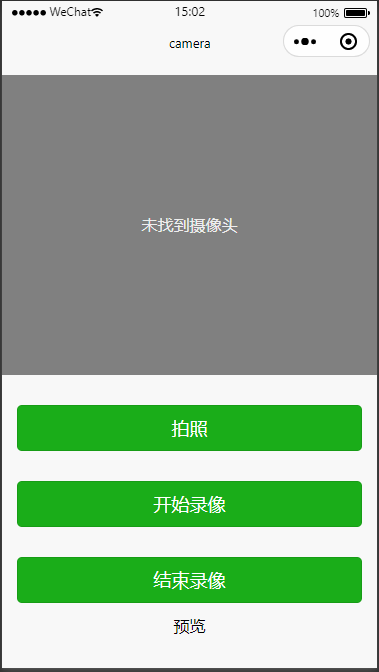
3.3 预览图(模拟器不显示预览图像)
四 参考



 4
4 0
0


 已为社区贡献8条内容

所有评论(0)