
如何快速统计并查看 windows 操作系统中D盘磁盘各个文件夹所占存储空间大小排名
·
复制粘贴下面这个脚本,保存为 Check-DiskUsage.ps1 文件,
# Check-DiskUsage.ps1
param(
    [string]$Path = "D:\",
    [int]$Top = 10
)

# Optional: better error visibility during development
$ErrorActionPreference = "SilentlyContinue"

Write-Host ("Scanning {0} ... this may take a while." -f $Path)

# Get size for each first-level directory
$dirs = Get-ChildItem -LiteralPath $Path -Directory -Force
$results = foreach ($d in $dirs) {
    try {
        $bytes = (Get-ChildItem -LiteralPath $d.FullName -Recurse -File -Force `
                 | Measure-Object -Property Length -Sum).Sum
        [PSCustomObject]@{
            Folder = $d.FullName
            SizeGB = [math]::Round(($bytes/1GB), 2)
        }
    } catch {
        # skip unreadable folders
    }
}

Write-Host ""
Write-Host "Top folders by size:" -ForegroundColor Yellow
$results |
    Sort-Object SizeGB -Descending |
    Select-Object -First $Top |
    Format-Table -AutoSize
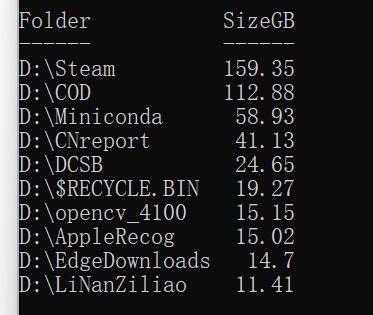
然后,以管理员身份运行 PowerShell,切换到 D 盘后,执行.\Check-DiskUsage.ps1 ,然后稍等一会儿就会显示容量大小排名前 10 的文件夹和其大小
如图所示
更多推荐


 4
 0
- 0


 已为社区贡献5条内容

所有评论(0)