
vs code上配置tcl/tk语言开发环境
·
1、Installing ActiveTcl for Linux
$ wget https://downloads.activestate.com/ActiveTcl/releases/8.6.8.0/ActiveTcl-8.6.8.0-x86_64-linux-glibc-2.5.tar.gz
$ tar zvxf ActiveTcl-8.6.8.0-x86_64-linux-glibc-2.5.tar.gz
$ cd ActiveTcl-8.6.8.0-x86_64-linux-glibc-2.5-28eabcbe7
$ ./install.sh
Welcome to

  ActiveTcl Community Edition for Linux/x86_64

Supported Packages:

        Tcl     8.6     Thread  2.7.3
        Tk      8.6     trofs   0.4.9

Extra Packages:

 zlib 1.2.11
 libiconv 1.15

 ...

 Cancel => C
Next   => [RET] >> 【Enter 回车】

 ...

Cancel         [no]  => [RET]
Accept License [yes] => 'A' >> yes

Please specify the installation directory.
Path [/opt/ActiveTcl-8.6]: /usr/local/software/ActiveTcl-8.6

Please specify the directory for the demos.
Path [/usr/local/software/ActiveTcl-8.6/demos]: 【Enter 回车】

...

Installing ActiveTcl ...
Installing demos ...
Done ...
Finishing the installation
Patching the shells and libraries for the new location ...
* /usr/local/software/ActiveTcl-8.6/bin/tclsh8.6 ...
* /usr/local/software/ActiveTcl-8.6/bin/wish8.6 ...

...

For a csh or compatible perform
    setenv PATH "/usr/local/software/ActiveTcl-8.6/bin:$PATH"

For a sh or similar perform
    PATH="/usr/local/software/ActiveTcl-8.6/bin:$PATH"
    export PATH

Some shells (bash for example) allow
    export PATH="/usr/local/software/ActiveTcl-8.6/bin:$PATH"

Similar changes are required for MANPATH
Finish >>
ActiveTcl 安装完成后,需要把 path 添加至环境变量(~/.bashrc):
export PATH="/usr/local/software/ActiveTcl-8.6/bin:$PATH"
ActiveTcl 安装
ActiveTcl 8.6.10 Documentation
2、vscode上配置tcl/tk语言开发环境
(1)基础软件
Tcl语言编译器 Active Tcl
文本编辑器 Visual Studio Code
(2)语法高亮、语法提示支持
安装Tcl语言支持插件:

(3) 配置tcl脚本运行编译器
1)安装Code Runner插件
2)对Code Runner进行设置
点击Code Runner插件右下角的齿轮,进入扩展设置。
首先需要勾选以下几个按钮:
Run in terminal会使代码在终端中运行;后面两个可以在运行代码前将代码自动保存,方便操作。
接下来找到Executor Map By File Extension,并进入Settings.json进行编辑。该文件记录了不同扩展名的文件在启动时会执行的特定操作。
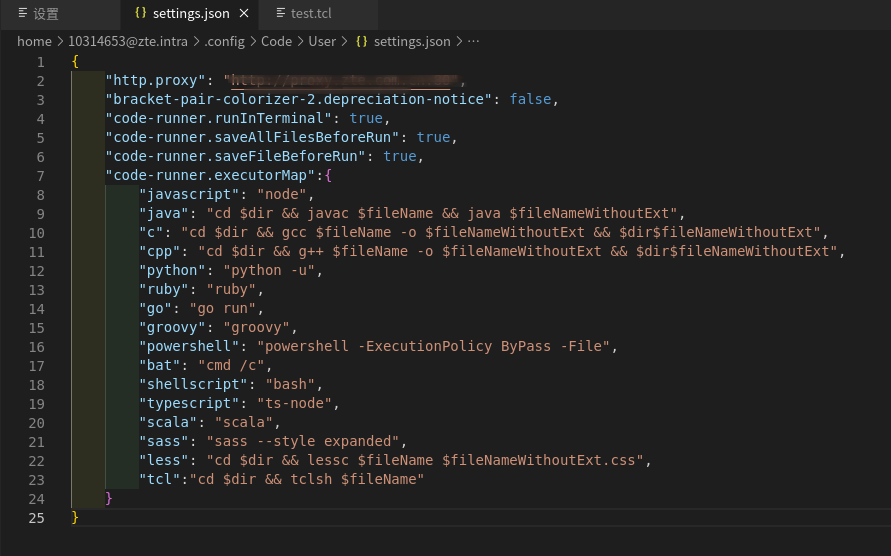
在文件中如图位置添加一行文字,这行内容表示对于.tcl文件,会调用tclsh运行改文件。
"tcl":"cd $dir && tclsh $fileName",
添加该行文本后,可以保存settings.json并将其关闭。
3、效果测试
完成以上步骤后即可实现对.tcl文件的自动调用了。
你可以用VS Code打开任意位置的.tcl文件。然后点击右上角的三角,或者在编辑区右键点击Run Code,或者使用快捷键,就可以在当前位置运行
更多推荐


 2
 0
- 0


 已为社区贡献1条内容

所有评论(0)