
Web自动化测试脚本常见测试步骤方法!
·
前言本期总结了笔者在日常工作中进行Web UI自动化测试时,常见的测试步骤封装方法,以供参考。
文案输入
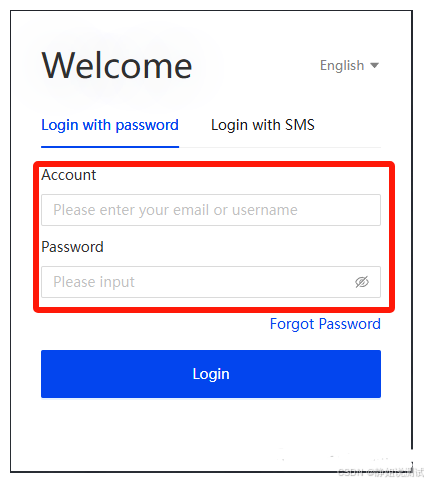
# log("登录操作", desc="输入账号")log("Login operation", desc="Enter account number")driver.find_element_by_xpath("//*[@id=\"username\"]").send_keys(cloud_login_account)# log("登录操作", desc="输入密码")log("Login operation", desc="Enter account number")driver.find_element_by_id("password").send_keys(cloud_login_password)
文案输入(变量)
log("Information input", desc="Enter user email information in the user search box")# 输入信息input_info="zgrlgm@126.com"driver.find_element_by_xpath("/html/body/div/div/span/input").send_keys(input_info)sleep(1.0)
文案输入(拼接格式化时间)
import timelog("Information input", desc="Enter the user Email information in the email field")# 格式化当前系统时间sys_time_fmt = time.strftime('%Y-%m-%d_%H-%M-%S', time.localtime(time.time()))# 输入信息input_info = "zgrlgm{}@126.com".format(sys_time_fmt)driver.find_element_by_xpath("/html/body/div/div/span/input").send_keys(input_info)sleep(1.0)
文案输入(拼接时间戳)
import timefrom datetime import datetime# 获取当前系统时间戳timestamp = datetime.timestamp(datetime.now())# 将浮点数时间戳转换为整数timestamp_without_decimal = int(timestamp)print(timestamp)print(timestamp_without_decimal)log("Information input", desc="Enter information in the project number field ")# 输入信息 project_numberinput_info_project_number = "number_{}".format(timestamp_without_decimal)driver.find_element_by_xpath("/html/body/span/input").send_keys(input_info_project_number)sleep(1.0)
文案输入(取消光标)
log("Information input", desc="Enter the email in the user search box")# 输入信息input_info="yanzhan.gou@clinflash.com"driver.find_element_by_xpath("/html/body/div[1]/span/input").send_keys(input_info)sleep(1.0)# 模拟按下TAB键取消光标ActionChains(driver).send_keys(Keys.TAB).perform()
功能按钮点击
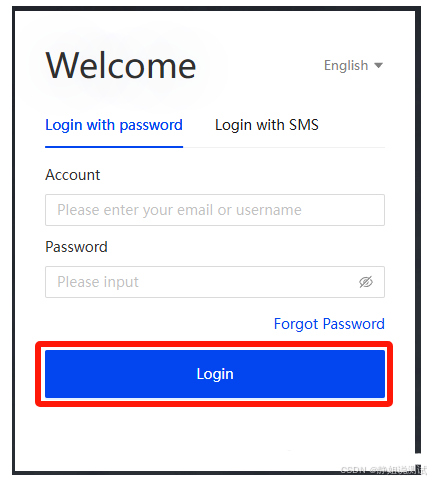
功能按钮点击
# log("登录操作", desc="点击登录按钮")log("Login operation", desc="Click the login button")driver.find_element_by_xpath("/html/body/div[1]/div/div/div[2]/div/div[2]/div[2]/div/div[2]/div/div[2]/div/div/button").click()sleep(1.0)
功能按钮点击(变量)
log("Subsystem login", desc="Click the subsystem button to jump to the subsystem")subsystem_application="/html/body/div[1]/div[2]/div/div[1]/div[1]/div/div/div/div[2]/div/div/div[1]"driver.find_element_by_xpath(subsystem_application).click()sleep(3.0)
页签操作
切换至新页签(直接切换)
log("TAB switching operation", desc="Switch to the newly opened tab page")driver.switch_to_new_tab()
切换至新页签(index方式)
# 获取所有的窗口句柄handles = driver.window_handles# 切换到新打开的页签driver.switch_to.window(handles[1])# 当前页签名称print(driver.title)
切换至第一个页签(index方式)
# 切换切换至第一个页签driver.switch_to.window(handles[0])# 当前页签名称print(driver.title)
关闭当前页签
# 关闭当前页签driver.close()
关闭特定页签
# 切换到要关闭的页签driver.switch_to.window(handles[1])# 关闭当前页签driver.close()
关所有页签
# 获取所有的窗口句柄handles = driver.window_handles遍历所有页签进行操作for handle in handles:driver.switch_to.window(handle)# 在这里进行对每个页签的操作print(driver.title)# 关闭当前页签driver.close()
根据标题切换回原来的页签
# 获取所有的窗口句柄handles = driver.window_handles# 获取当前页签的标题作为参考current_title = driver.title# 切换到新打开的页签并获取标题driver.switch_to.window(handles[1])new_title = driver.title# 如果要根据标题切换回原来的页签,可以这样做if new_title!= current_title:for handle in handles:driver.switch_to.window(handle)if driver.title == current_title:break# 现在又回到了原来的页签print(driver.title)
将页面滑动至底部
将页面滑动至底部
# log("页面滑动", desc="将页面滑动至底部")log("Page slide operation", desc="Slide the page to the bottom")# 定位到页面中某个元素,例如通过元素的XPath定位element = driver.find_element_by_xpath('/html/body/div[1]/div/div/div/section/section/div/main/div/div[4]/ul/li[11]/div[2]')# 使用JavaScript将页面滑动至元素可见的位置driver.execute_script("arguments[0].scrollIntoView(true);", element)driver.snapshot()
下拉框-单选
下拉框-单选(不支持搜索)
log("Dropdown select", desc="Click the dropdown selection box")driver.find_element_by_xpath("/html/body/div[1]/section/section/main/div[2]/div[1]/div[2]/div/div/input").click()log("Dropdown select", desc="Option select click")driver.find_element_by_xpath("/html/body/div[2]/div[1]/div[1]/ul/li[1]").click()
下拉框-单选(支持搜索)
log("Dropdown select", desc="Click the dropdown selection box")driver.find_element_by_xpath("/html/body/div[1]/section/section/main/div[2]/div[1]/div/div/input").click()driver.assert_template(Template(r"tpl1717039273895.png", threshold=0.49999999999999983, record_pos=(0.039, -0.269), resolution=(2710, 2080)), "The dropdown list is successfully triggered")log("Dropdown select", desc="Enter the corresponding copy in the input box")driver.find_element_by_xpath("/html/body/div[1]/section/section/main/div[2]/div[1]/div/div/input").send_keys("Page Data Report")sleep(1.0)driver.assert_template(Template(r"tpl1717039356793.png", threshold=0.49999999999999983, record_pos=(-0.069, -0.308), resolution=(2710, 2080)), "The dropdown list is successfully filtered")log("Dropdown select", desc="Option select click")driver.find_element_by_xpath("/html/body/div[2]/div[1]/div[1]/ul/li[2]").click()sleep(3.0)driver.assert_template(Template(r"tpl1717039481273.png", threshold=0.49999999999999983, record_pos=(-0.014, -0.302), resolution=(2710, 2080)), "Filter result verification")
搜索功能
搜索功能(需要Enter按键)
log("Information input", desc="Enter the corresponding copy in the input box")driver.find_element_by_xpath("//input[@placeholder='Search by project number or name']").send_keys("Test01")log("Information input", desc="Confirm copy input")driver.find_element_by_xpath("//input[@placeholder='Search by project number or name']").send_keys(Keys.ENTER)
搜索功能(需要Enter按键-优化方案)
# 优化方案# 设置需要输入的信息input_info="wjy-test2024"# 输入框元素路径element_input_path="/html/body/div/div/input"# 获取输入框元素element_input=driver.find_element_by_xpath(element_input_path)# 在输入框元素中执行文案输入log("Information input", desc="Enter the corresponding copy in the input box")element_input.send_keys(input_info)# 模拟enter按键log("Information input", desc="Confirm copy input")element_input.send_keys(Keys.ENTER)sleep(1.0)
文件导出功能
文件导出功能-固定名称
log("Function button click", desc="Click on Export button")driver.find_element_by_xpath("/html/body/div[1]/section/section/main/section/main/div/div[2]/div/div/div[1]/div[2]/div/button[1]").click()sleep(3.0)# 获取最新下载的文件名和文件路径download_file_name, download_file_path=ccs_module.get_download_file_info()print("download_file_name:",download_file_name)print("download_file_path:",download_file_path)# 期望导出的文件名称expected_file_name="users.xlsx"log("Export file name verification", desc="The file exported to the file download directory is: "+download_file_name)assert download_file_name==expected_file_name,"Export file name is not exist!"# 删除下载的文件ccs_module.remove_files(download_file_path)
文件导出功能-动态名称
log("Function button click", desc="Click on the Export button")driver.find_element_by_xpath("/html/body/div[1]/div/div/div/section/section/div/main/div[1]/section/div[2]/main/span/button[4]").click()sleep(1.0)# 获取最新下载的文件名和文件路径download_file_name, download_file_path=ccs_module.get_download_file_info()print("download_file_name:",download_file_name)print("download_file_path:",download_file_path)# 期望导出的文件名称 前缀信息prefix = "File List-2024-"# 期望导出的文件名称 后缀信息suffix = ".xlsx"log("Export file name verification", desc="The file exported to the file download directory is: "+download_file_name)assert download_file_name.startswith(prefix) and download_file_name.endswith(suffix),"Export file name is not exist!"# 删除下载的文件ccs_module.remove_files(download_file_path)
操作<iframe>中的元素
from selenium.webdriver.common.by import Byfrom selenium.webdriver.support.ui import WebDriverWaitfrom selenium.webdriver.support import expected_conditions as EC# 定位iframeiframe = driver.find_element_by_xpath("/html/body/div[1]/div[2]/div/div[1]/div[2]/div/div/div/div/div[1]/div/div[2]/iframe")# 切换到iframedriver.switch_to.frame(iframe)# 在iframe内查找元素element_in_iframe = WebDriverWait(driver, 10).until(EC.presence_of_element_located((By.XPATH, "/html/body/div/div/div/div/div/ul/div[1]/div/div[2]/section/div/div[1]")))# 示例操作:点击元素log("Function button click", desc="Click article Probability in Selected Regulations")element_in_iframe.click()sleep(3.0)
模拟鼠标悬浮操作
log("Function button click", desc="Click the language button in the personal information drawer page")# 找到需要悬浮的元素element_language = driver.find_element_by_xpath("/html/body/div[4]/div/div/div/div/div[2]/div/table/tbody/tr[2]/td/span/div/span")# 使用 ActionChains 类来模拟鼠标悬浮操作actions = ActionChains(driver)actions.move_to_element(element_language).perform()sleep(1.0)
模拟鼠标悬浮操作(有二级菜单)
# 点击一级菜单log("Function button click", desc="Click the User icon in the top menu bar on the right")# 找到需要悬浮的元素element_user = driver.find_element_by_xpath("/html/body/div[1]/section/header/a/div/div[2]")# 使用 ActionChains 类来模拟鼠标悬浮操作actions = ActionChains(driver)actions.move_to_element(element_user).perform()sleep(1.0)# 点击二级菜单log("Function button click", desc="Click the Role Switch button")# 找到需要悬浮的元素element_role = driver.find_element_by_xpath("/html/body/div[4]/div/div/div[1]/ul/li[1]/div")# 使用 ActionChains 类来模拟鼠标悬浮操作actions.move_to_element(element_role).perform()sleep(1.0)
元素是否存在判断
# 判断是否开启了***模块,如果开启了,则进行ingore操作elearning_ignore=driver.find_element_by_xpath("/html/body/div[2]/div/div[2]/div[3]/button")if elearning_ignore:log("Page element click", desc="Click the element in the page")elearning_ignore.click()log("Page element click", desc="Click the element in the page")driver.find_element_by_xpath("/html/body/div[1]/section/section/header/div[3]/div[4]/div/div/div[2]/button").click()sleep(1.0)
↵
最后感谢每一个认真阅读我文章的人,看着粉丝一路的上涨和关注,礼尚往来总是要有的,虽然不是什么很值钱的东西,如果你用得到的话可以直接拿走!
软件测试面试文档
我们学习必然是为了找到高薪的工作,下面这些面试题是来自阿里、腾讯、字节等一线互联网大厂最新的面试资料,并且有字节大佬给出了权威的解答,刷完这一套面试资料相信大家都能找到满意的工作。

更多推荐

 5
5 0
0- 0


 已为社区贡献15条内容

所有评论(0)