
three.js+vue浏览器端展示nrrd+vtk3D模型(截图功能+颜色功能)
·
前言
前面做了vue+three.js展示nrrd+vtk3D模型-vue框架集成后,
想给我们的项目加一些功能,因为目前考虑的只是展示,
没有需求,所以做一些功能尝试添加,样式以及实现比较简单
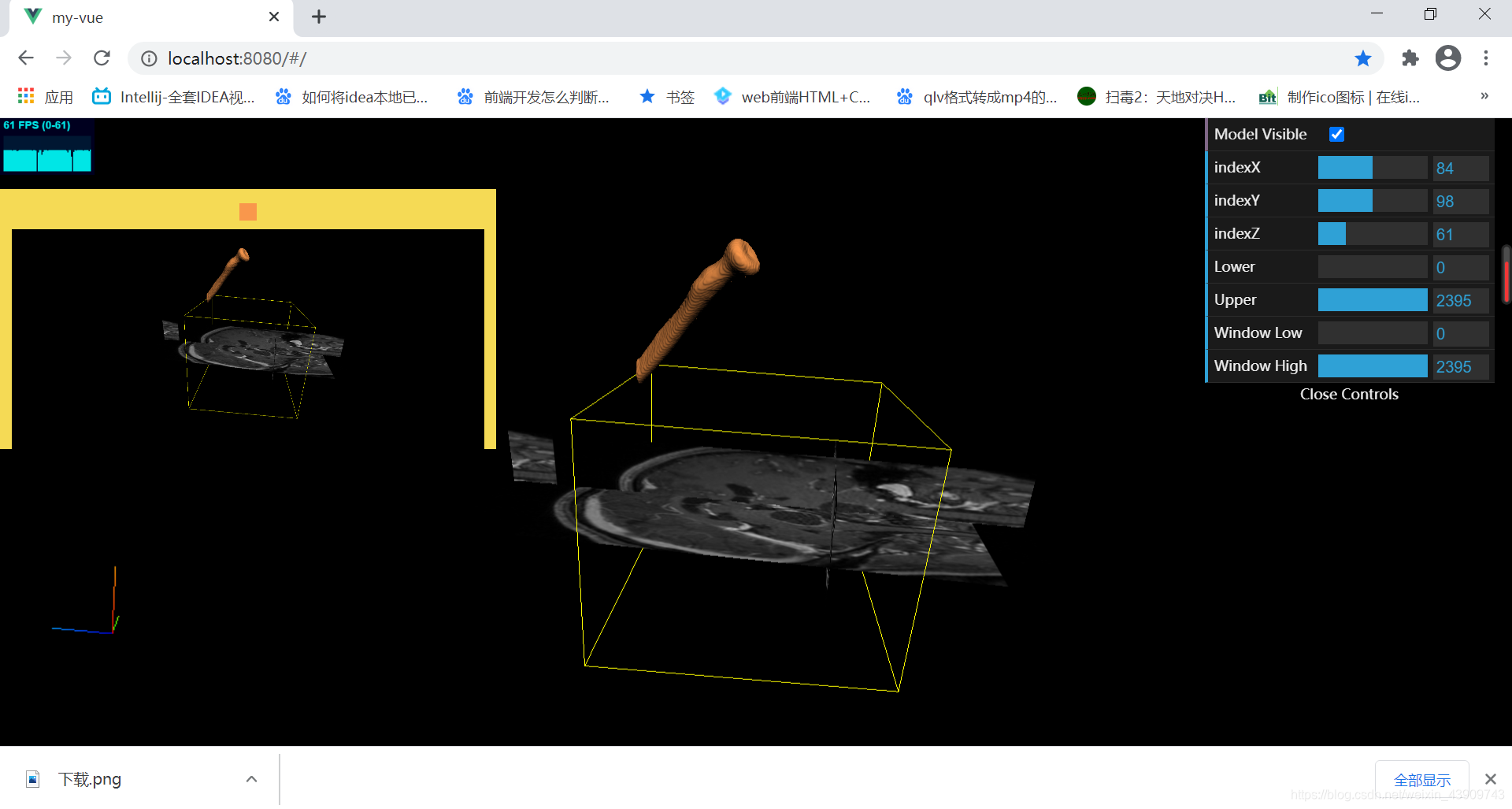
实现了点击进行截图下载和选择颜色修改vtk模型颜色的功能,
目前如果要截取多张图片还需要额外的样式处理
效果图
源码
HelloWorld.vue
<template>
	<div>
  	<div class="home" ref="capture" style="padding: 10px; background: #f5da55" @click="jianqie">
			<colorPicker v-model="color" v-on:change="headleChangeColor"></colorPicker>
		</div>
    <div id="info"></div>
		<div id="inset"></div>
		<!-- <div id="container"></div> -->
  </div>
</template>
<script>
import * as THREE from 'three';
import html2canvas from 'html2canvas';
import Stats from 'three/examples/jsm/libs/stats.module.js';
import { GUI } from 'three/examples/jsm/libs/dat.gui.module.js';
import { TrackballControls } from 'three/examples/jsm/controls/TrackballControls.js';
import { NRRDLoader } from 'three/examples/jsm/loaders/NRRDLoader.js';
import { VTKLoader } from 'three/examples/jsm/loaders/VTKLoader.js';
export default {
	name: 'HelloWorld',

	components: {
	},
	data() {
    return {
			stats: null,
      camera: null,
      scene: null,
      renderer: null,
      mesh: null,
			gui:null,
			dirLight: null,
			controls: null,
			nrrdloader: null,
			vtkloader: null,
			renderer2: null, // 渲染器二
			camera2: null, // 相机二
			axes2: null, // 坐标系
			scene2: null, // 场景二
			color: '#90a2b5',
			mesh2: null,
			vtkmaterial: null
    }
  },
  methods: {
		headleChangeColor(){
			console.log('颜色改变触发')
			console.log(this.vtkmaterial)
			this.mesh2.material.color.set(this.color)
		},
		jianqie(){
			console.log(html2canvas)
			// html2canvas(this.$refs.capture).then(canvas => {
			// 		this.$refs.capture.appendChild(canvas)
			// });
			document.querySelector('.jietuid>canvas').style.background = '#000'
			html2canvas(document.querySelector('.jietuid>canvas')).then(canvas => {
					// document.body.appendChild(canvas)
					this.$refs.capture.appendChild(canvas)
					var imgData = canvas.toDataURL('image/png')
					const link = document.createElement('a')
					link.href = imgData
					link.download = `下载.png` // 下载的文件名
					link.click()
			});
			// let canvas=this.rederer.domElement
			// this.rederer.render(this.scene, this.camera)
			// var imgUri = canvas.toDataURL("image/png").replace("image/png", "image/octet-stream"); // 获取生成的图片的url
			// window.location.href= imgUri // 下载图片
		},
    init: function() {
        // let container = document.getElementById('container');

        this.camera = new THREE.PerspectiveCamera( 60, window.innerWidth / window.innerHeight, 0.01, 1e10 );
				this.camera.position.z = 300;

        this.scene = new THREE.Scene();
				this.scene.add(this.camera)
        let geometry = new THREE.BoxGeometry(0.2, 0.2, 0.2);
        let material = new THREE.MeshNormalMaterial();

        this.mesh = new THREE.Mesh(geometry, material);
				this.scene.add(this.mesh);

				this.dirLight = new THREE.DirectionalLight( 0xffffff ); // 平行光 所有被照射的区域亮度是一致的
				this.dirLight.position.set( 200, 200, 1000 ).normalize(); // 设置平行光方向
				this.camera.add( this.dirLight );
				this.camera.add( this.dirLight.target );

        this.gui = new GUI();
				this.nrrdloader = new NRRDLoader(); // 加载模型文件
				this.nrrdloader.load( "../../static/1.nrrd",  volume => {
          console.log(volume)
          let geometry, material, sliceZ, sliceY, sliceX;
					//box helper to see the extend of the volume
					geometry = new THREE.BoxBufferGeometry( volume.xLength, volume.yLength, volume.zLength ); // 长方体
					material = new THREE.MeshBasicMaterial( { color: 0x00ff00 } ); // 材质
					let cube = new THREE.Mesh( geometry, material );
					cube.visible = false;
					let box = new THREE.BoxHelper( cube ); // 给立方体设置边框
					this.scene.add( box );
					box.applyMatrix4( volume.matrix ); // 立方体最大位置
					this.scene.add( cube );
					//z plane ??
					sliceZ = volume.extractSlice( 'z', Math.floor( volume.RASDimensions[ 2 ] / 4 ) );
					this.scene.add( sliceZ.mesh );

					//y plane
					sliceY = volume.extractSlice( 'y', Math.floor( volume.RASDimensions[ 1 ] / 2 ) );
					this.scene.add( sliceY.mesh );

					//x plane
					sliceX = volume.extractSlice( 'x', Math.floor( volume.RASDimensions[ 0 ] / 2 ) );
					this.scene.add( sliceX.mesh );

					this.gui.add( sliceX, "index", 0, volume.RASDimensions[ 0 ], 1 ).name( "indexX" ).onChange( function () {

						sliceX.repaint.call( sliceX );

					} );
					this.gui.add( sliceY, "index", 0, volume.RASDimensions[ 1 ], 1 ).name( "indexY" ).onChange( function () {

						sliceY.repaint.call( sliceY );

					} );
					this.gui.add( sliceZ, "index", 0, volume.RASDimensions[ 2 ], 1 ).name( "indexZ" ).onChange( function () {

						sliceZ.repaint.call( sliceZ );

					} );

					this.gui.add( volume, "lowerThreshold", volume.min, volume.max, 1 ).name( "Lower Threshold" ).onChange( function () {

						volume.repaintAllSlices();

					} );
					this.gui.add( volume, "upperThreshold", volume.min, volume.max, 1 ).name( "Upper Threshold" ).onChange( function () {

						volume.repaintAllSlices();

					} );
					this.gui.add( volume, "windowLow", volume.min, volume.max, 1 ).name( "Window Low" ).onChange( function () {

						volume.repaintAllSlices();

					} );
					this.gui.add( volume, "windowHigh", volume.min, volume.max, 1 ).name( "Window High" ).onChange( function () {

						volume.repaintAllSlices();

					} );

				});
				this.vtkmaterial = new THREE.MeshLambertMaterial( { wireframe: false, morphTargets: false, side: THREE.DoubleSide, color: this.color } );
				this.vtkloader = new VTKLoader()
				this.vtkloader.load( "../../static/bone_1.vtk", geometry =>{
					console.log(geometry)
					geometry.computeVertexNormals();

					this.mesh2 = new THREE.Mesh( geometry, this.vtkmaterial ); // mesh 物体对象
					this.scene.add( this.mesh2 );
					var visibilityControl = {
						visible: true
					};
					this.gui.add( visibilityControl, "visible" ).name( "Model Visible" ).onChange( ()=>{

						this.mesh2.visible = visibilityControl.visible;
						this.renderer.render( this.scene, this.camera );

					} );
				});


				// this.renderer = new THREE.WebGLRenderer({antialias: true});
				this.renderer = new THREE.WebGLRenderer( { alpha: true,preserveDrawingBuffer: true } );
				this.renderer.setPixelRatio( window.devicePixelRatio ); //设置canvas的像素比为当前设备的屏幕像素比,避免高分屏下模糊
        // this.renderer.setSize(container.clientWidth, container.clientHeight);
				this.renderer.setSize(window.innerWidth, window.innerHeight);
				var container = document.createElement( 'div' );
				document.body.appendChild( container );
				container.setAttribute("class",'jietuid' )
        container.appendChild(this.renderer.domElement);

				this.controls= new TrackballControls( this.camera, this.renderer.domElement ); // 轨迹球控制器,通过键盘和鼠标控制前后左右平移和缩放场景
				this.controls.rotateSpeed = 5.0;
				this.controls.zoomSpeed = 5;
				this.controls.panSpeed = 2;
				this.controls.staticMoving = true;

				this.stats = new Stats(); // 帧率监测器
				container.appendChild( this.stats.dom );

				this.setupInset()
				window.addEventListener( 'resize', this.onWindowResize, false ); // 实时监听·

		},
		setupInset(){
			var insetWidth = 150, insetHeight = 150;
			var container2 = document.getElementById( 'inset' );
			container2.width = insetWidth;
			container2.height = insetHeight;

				// renderer
				this.renderer2 = new THREE.WebGLRenderer( { alpha: true } );
				this.renderer2.setClearColor( 0x000000, 0 );
				this.renderer2.setSize( insetWidth, insetHeight );
				container2.appendChild( this.renderer2.domElement );

				// scene
				this.scene2 = new THREE.Scene();

				// camera
				this.camera2 = new THREE.PerspectiveCamera( 50, insetWidth / insetHeight, 1, 1000 );
				this.camera2.up = this.camera.up; // important!

				// axes
				this.axes2 = new THREE.AxesHelper( 100 );
				this.scene2.add( this.axes2 );
		},
    animate: function() {
        requestAnimationFrame(this.animate);
        this.controls.update();

				//copy position of the camera into inset
				this.camera2.position.copy( this.camera.position );
				this.camera2.position.sub( this.controls.target );
				this.camera2.position.setLength( 300 );
				this.camera2.lookAt( this.scene2.position );

				this.renderer.render( this.scene, this.camera );
				this.renderer2.render( this.scene2, this.camera2 );

				this.stats.update();
		},
		onWindowResize() {
			this.camera.aspect = window.innerWidth / window.innerHeight;
			this.camera.updateProjectionMatrix();
			this.renderer.setSize( window.innerWidth, window.innerHeight );
			this.controls.handleResize();
		}
  },
  mounted() {
      this.init();
      this.animate()
  }
}
</script>
<style>
.home>canvas{
	width: 400px !important;
	height: 200px !important;
}
</style>
<style>
	.home {
		position: absolute;
    height: 200px;
		width: 400px;
		background-color: #f00;
  }
	#inset {
		width: 150px;
		height: 150px;
		background-color: transparent; /* or transparent; will show through only if renderer alpha: true */
		border: none; /* or none; */
		margin: 0;
		padding: 0px;
		position: absolute;
		left: 20px;
		bottom: 20px;
		z-index: 100;
	}
	body {
	margin: 0;
	background-color: #000;
	color: #fff;
	font-family: Monospace;
	font-size: 13px;
	line-height: 24px;
	overscroll-behavior: none;
}

a {
	color: #ff0;
	text-decoration: none;
}

a:hover {
	text-decoration: underline;
}

button {
	cursor: pointer;
	text-transform: uppercase;
}

canvas {
	display: block;
}

#info {
	position: absolute;
	top: 0px;
	width: 100%;
	padding: 10px;
	box-sizing: border-box;
	text-align: center;
	-moz-user-select: none;
	-webkit-user-select: none;
	-ms-user-select: none;
	user-select: none;
	pointer-events: none;
	z-index: 1; /* TODO Solve this in HTML */
}

a, button, input, select {
	pointer-events: auto;
}

.dg.ac {
	-moz-user-select: none;
	-webkit-user-select: none;
	-ms-user-select: none;
	user-select: none;
	z-index: 2 !important; /* TODO Solve this in HTML */
}

#overlay {
	position: absolute;
	z-index: 2;
	top: 0;
	left: 0;
	width: 100%;
	height:100%;
	display: flex;
	align-items: center;
	justify-content: center;
	opacity: 1;
	background-color: #000000;
	color: #ffffff;
}

#overlay > div {
	text-align: center;
}

#overlay > div > button {
	height: 20px;
	background: transparent;
	color: #ffffff;
	outline: 1px solid #ffffff;
	border: 0px;
	cursor: pointer;
}

#overlay > div > p {
	color: #777777;
	font-size: 12px;
}
body {
				font-family: Monospace;
				background-color: #000;
				color: #fff;
				margin: 0px;
				overflow: hidden;
			}
			#info {
				color: #fff;
				position: absolute;
				top: 10px;
				width: 800px;
        height: 800px;
				text-align: center;
				z-index: 100;
				display:block;
			}
			#info a, .button { color: #f00; font-weight: bold; text-decoration: underline; cursor: pointer }
</style>
app.vue
<template>
  <div id="app">
    <router-view/>
  </div>
</template>

<script>
export default {
  name: 'App'
}
</script>

<style>
#app {
  font-family: 'Avenir', Helvetica, Arial, sans-serif;
  -webkit-font-smoothing: antialiased;
  -moz-osx-font-smoothing: grayscale;
  text-align: center;
  color: #2c3e50;
  margin-top: 60px;
}
</style>
main.js
// The Vue build version to load with the `import` command
// (runtime-only or standalone) has been set in webpack.base.conf with an alias.
import Vue from 'vue'
import App from './App'
import router from './router'
// vue颜色插件
import vcolorpicker from 'vcolorpicker'
Vue.use(vcolorpicker)
Vue.config.productionTip = false

/* eslint-disable no-new */
new Vue({
  el: '#app',
  router,
  components: { App },
  template: '<App/>'
})
如果需要nodemoudles里面的文件以及文件资源,看我以前的博客
vue+three.js展示nrrd+vtk3D模型-vue框架集成(下)
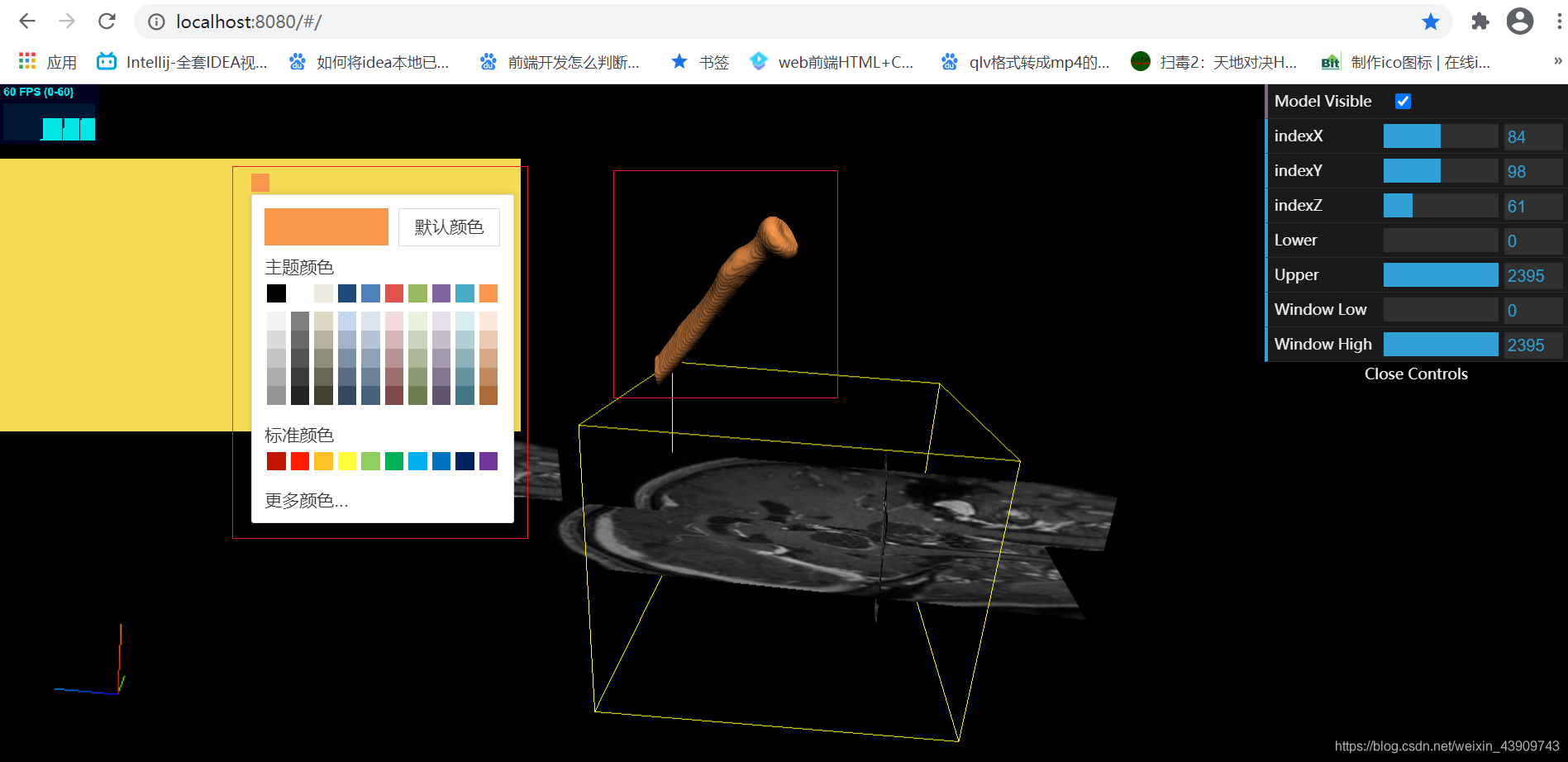
功能1-实现图形颜色的转换功能
-
效果图
-
颜色插件
vue的颜色插件 -vColorPicker
1、装包npm install vcolorpicker -S2、main.js导入
// vue颜色插件
import vcolorpicker from 'vcolorpicker'
Vue.use(vcolorpicker)
3、页面使用
<colorPicker v-model="color" v-on:change="headleChangeColor"></colorPicker> // 解释:headleChangeColor是颜色改变触发的函数 -
功能实现代码
1、data数据data(){ return { scene2: null, // 场景二 color: '#90a2b5', mesh2: null, vtkmaterial: null } }vtk文件设置
	this.vtkmaterial = new THREE.MeshLambertMaterial( { wireframe: false, morphTargets: false, side: THREE.DoubleSide, color: this.color } );
				this.vtkloader = new VTKLoader()
				this.vtkloader.load( "../../static/bone_1.vtk", geometry =>{
					console.log(geometry)
					geometry.computeVertexNormals();

					this.mesh2 = new THREE.Mesh( geometry, this.vtkmaterial ); // mesh 物体对象
					this.scene.add( this.mesh2 );
颜色改变触发函数
headleChangeColor(){
			console.log('颜色改变触发')
			console.log(this.vtkmaterial)
			this.mesh2.material.color.set(this.color)
		},
功能-实现截图的功能(点击实现截图下载)
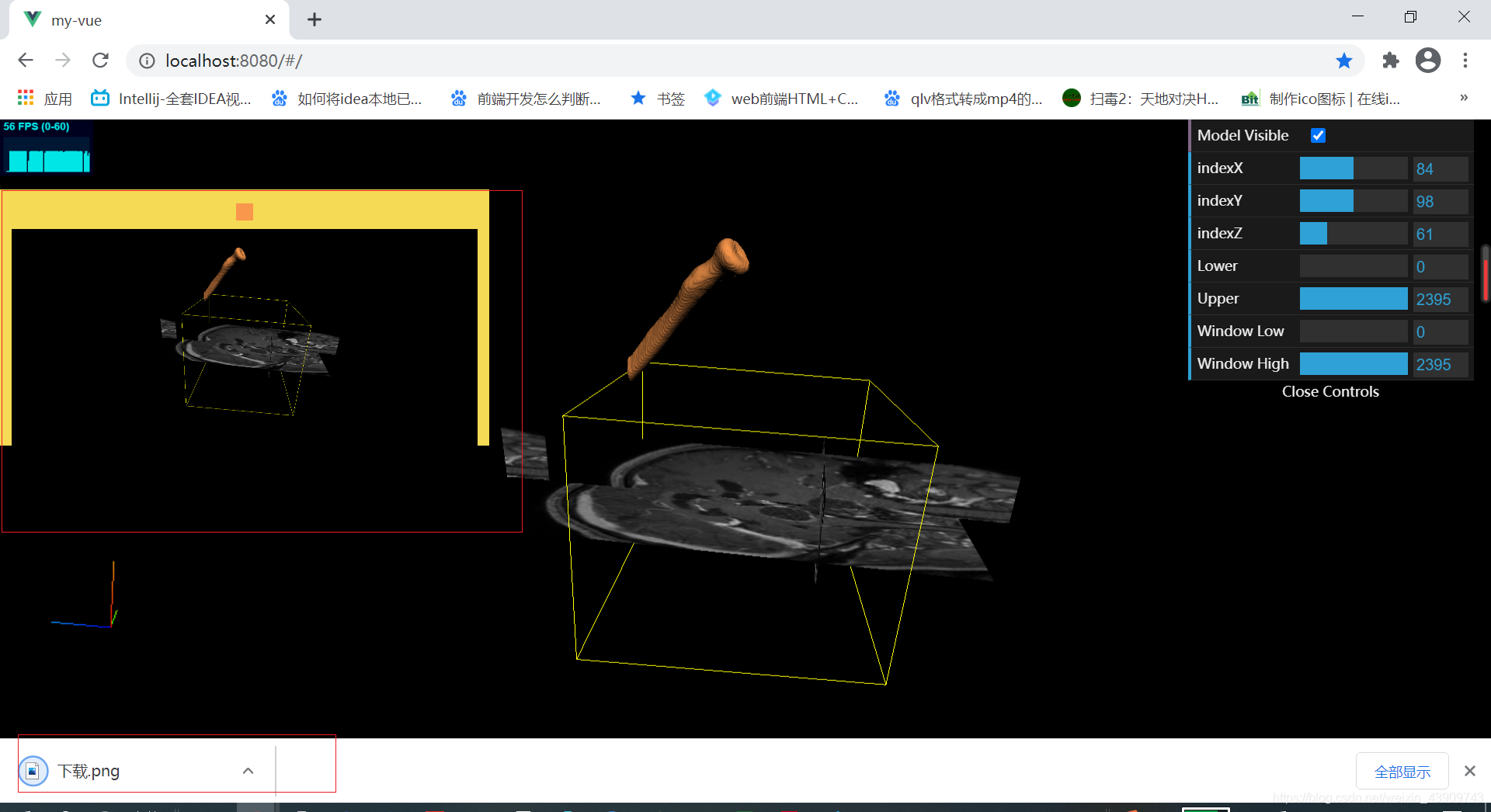
安装
npm install --save html2canvas
<div class="home" ref="capture" style="padding: 10px; background: #f5da55" @click="jianqie">
			<colorPicker v-model="color" v-on:change="headleChangeColor"></colorPicker>
		</div>
import html2canvas from 'html2canvas';
jianqie(){
			console.log(html2canvas)
			// html2canvas(this.$refs.capture).then(canvas => {
			// 		this.$refs.capture.appendChild(canvas)
			// });
			document.querySelector('.jietuid>canvas').style.background = '#000'
			html2canvas(document.querySelector('.jietuid>canvas')).then(canvas => {
					// document.body.appendChild(canvas)
					this.$refs.capture.appendChild(canvas)
					var imgData = canvas.toDataURL('image/png')
					const link = document.createElement('a')
					link.href = imgData
					link.download = `下载.png` // 下载的文件名
					link.click()
			});
			// let canvas=this.rederer.domElement
			// this.rederer.render(this.scene, this.camera)
			// var imgUri = canvas.toDataURL("image/png").replace("image/png", "image/octet-stream"); // 获取生成的图片的url
			// window.location.href= imgUri // 下载图片
		}
更多推荐

 0
0 0
0- 0


 已为社区贡献1条内容

所有评论(0)