
kafka、hive、flume环境搭建
·
环境为 ubuntu 16.04,ip:192.168.1.100,单机模式
0x00.JAVA环境搭建
0x01.kafka环境搭建
1. zookeeper
- 启动:
./zkServer.sh start-foreground2. kafka
- 为了使kafka能够通过ip访问,需要修改`conf/server.properties`文件:
advertised.listeners=PLAINTEXT://192.168.1.100:9092
- 启动server:
$ ./kafka-server-start.sh ../config/server.properties- 创建topic:
$ ./kafka-topics.sh --create --zookeeper localhost:2181 --replication-factor 1 --partitions 1 --topic test
Created topic "test".
- 查看topic:
$ ./kafka-topics.sh --list --zookeeper localhost:2181
test
- 生产者:
$ ./kafka-console-producer.sh --broker-list localhost:9092 --topic test- 消费者:
$ ./kafka-console-consumer.sh --bootstrap-server localhost:9092 --topic test0x02.hive环境搭建
1. hadoop
- 下载hadoop
- 解压,统一存放到/opt目录下
$ tar -zxvf hadoop-3.1.1.tar.gz
$ sudo mv hadoop-3.1.1 /opt/hadoop- 添加环境变量
$ vim ~/.bashrc
    修改如下
    export HADOOP_HOME=/opt/hadoop
    export PATH=${JAVA_HOME}/bin:$PATH:${HADOOP_HOME}/bin
$ source ~/.bashrc
- 执行简单的hadoop命令,查看是否安装成功
$ hadoop dfs -ls /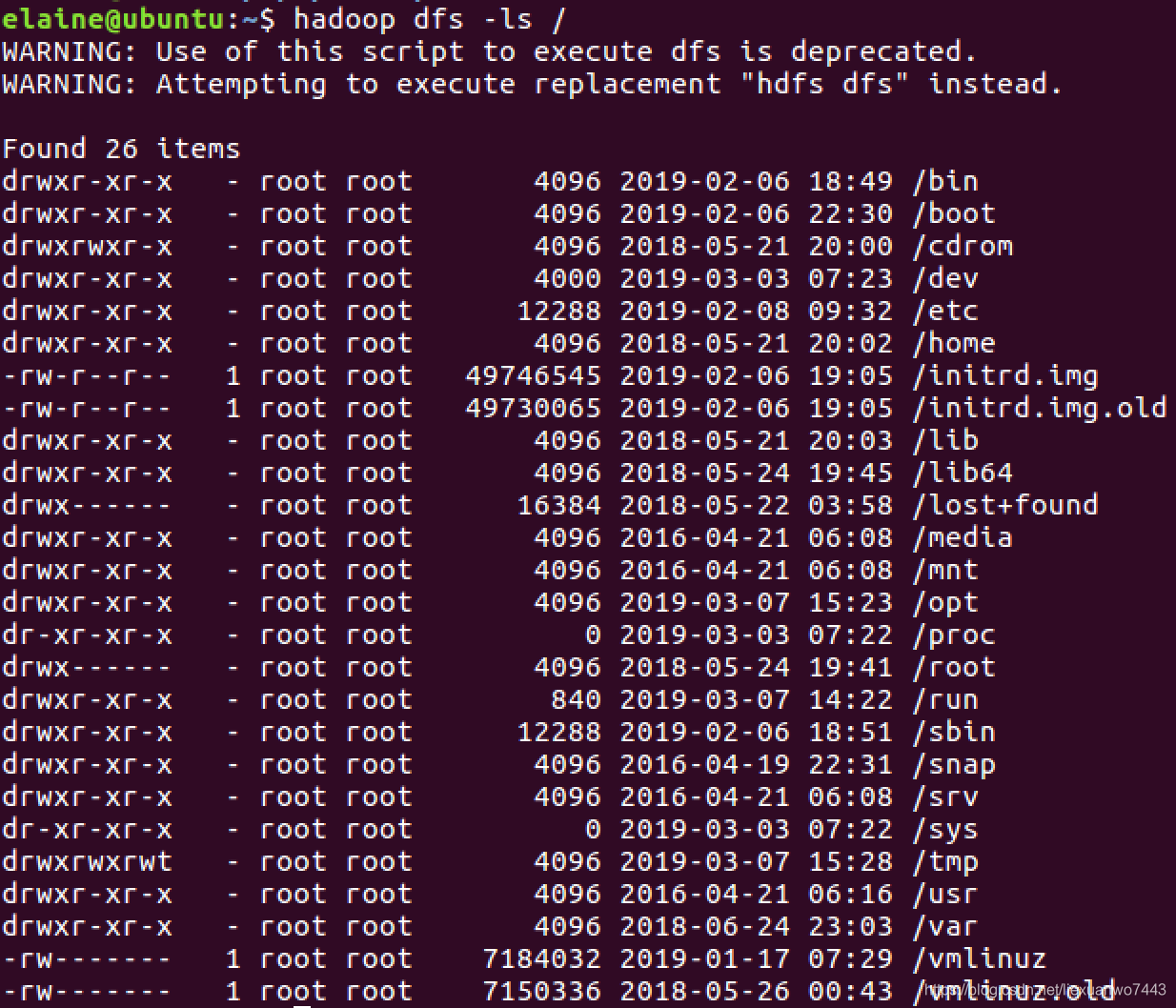
2. hive
- 下载hive
- 解压,统一存放到/opt目录下
$ tar -zxvf apache-hive-3.1.1-bin.tar.gz
$ sudo mv apache-hive-3.1.1-bin /opt/hive- 添加环境变量
$ vim ~/.bashrc
    修改如下:
    export HIVE_HOME=/opt/hive
    export HIVE_CONF_DIR=$HIVE_HOME/conf
    export PATH=${JAVA_HOME}/bin:$PATH:${HADOOP_HOME}/bin:${HIVE_HOME}/bin
$ source ~/.bashrc- 在`/opt/hive`目录下,新建warehouse、tmp、log文件夹
$ mkdir warehouse tmp log- 修改`/opt/hive/conf`文件夹下面的文件名:
$ cp hive-env.sh.template hive-env.sh
$ cp hive-log4j2.properties.template hive-log4j2.properties - 编辑`hive-env.sh`
export HADOOP_HEAPSIZE=1024

HADOOP_HOME=/opt/hadoop

export HIVE_CONF_DIR=/opt/hive/conf

export HIVE_AUX_JARS_PATH=/opt/hive/lib
- 采用mysql作为hive的元数据库,创建名为`hive_db`的数据库,`hive_user`为用户
$ mysql -u root -p

mysql> CREATE DATABASE hive_db;
Query OK, 1 row affected (0.02 sec)

mysql> CREATE USER 'hive_user'@'localhost' IDENTIFIED BY 'hivepass';
Query OK, 0 rows affected (0.06 sec)

mysql> GRANT ALL ON hive_db.* TO 'hive_user'@'localhost';
Query OK, 0 rows affected (0.00 sec)

mysql> FLUSH PRIVILEGES;
Query OK, 0 rows affected (0.09 sec)
- 创建`/opt/hive/conf/hive-site.xml`。(此处新建文件最方便啦,直接粘贴这个配置,修改里面的参数)
<?xml version="1.0" encoding="UTF-8" standalone="no"?>
<?xml-stylesheet type="text/xsl" href="configuration.xsl"?><!--
   Licensed to the Apache Software Foundation (ASF) under one or more
   contributor license agreements.  See the NOTICE file distributed with
   this work for additional information regarding copyright ownership.
   The ASF licenses this file to You under the Apache License, Version 2.0
   (the "License"); you may not use this file except in compliance with
   the License.  You may obtain a copy of the License at

       http://www.apache.org/licenses/LICENSE-2.0

   Unless required by applicable law or agreed to in writing, software
   distributed under the License is distributed on an "AS IS" BASIS,
   WITHOUT WARRANTIES OR CONDITIONS OF ANY KIND, either express or implied.
   See the License for the specific language governing permissions and
   limitations under the License.
-->
<configuration>
  <!-- WARNING!!! This file is auto generated for documentation purposes ONLY! -->
  <!-- WARNING!!! Any changes you make to this file will be ignored by Hive.   -->
  <!-- WARNING!!! You must make your changes in hive-site.xml instead.         -->
  <!-- Hive Execution Parameters -->
  <property>
    <name>hive.metastore.warehouse.dir</name>
    <value>/opt/hive/warehouse</value>
    <description>location of default database for the warehouse</description>
 </property>
 <property>
    <name>hive.querylog.location</name>
    <value>/opt/hive/log</value>
    <description>Location of Hive run time structured log file</description>
 </property>
 <property>
    <name>hive.downloaded.resources.dir</name>
    <value>/opt/hive/tmp</value>
    <description>Temporary local directory for added resources in the remote file system.</description>
 </property>
 <property>
    <name>javax.jdo.option.ConnectionURL</name>
    <value>jdbc:mysql://localhost:3306/hive_db</value>
    <description>
      JDBC connect string for a JDBC metastore.
      To use SSL to encrypt/authenticate the connection, provide database-specific SSL flag in the connection URL.
      For example, jdbc:postgresql://myhost/db?ssl=true for postgres database.
    </description>
  </property>
  <property>
<name>javax.jdo.option.ConnectionDriverName</name>
    <value>com.mysql.jdbc.Driver</value>
    <description>Driver class name for a JDBC metastore</description>
  </property>
 <property>
    <name>javax.jdo.option.ConnectionUserName</name>
    <value>hive_user</value>
    <description>Username to use against metastore database</description>
  </property>
<property>
    <name>javax.jdo.option.ConnectionPassword</name>
    <value>hivepass</value>
    <description>password to use against metastore database</description>
  </property>
</configuration>
- 下载mysql-connector-java ,并将其存放在`/opt/hive/lib`目录下
$ sudo cp mysql-connector-java-5.1.47.jar /opt/hive/lib/- 进入hive的bin目录下:
$ ./schematool -initSchema -dbType mysql- 运行,无报错即安装成功
$ hivehive

> create database hivetest;
OK
Time taken: 0.176 seconds
hive> use hivetest;
OK
Time taken: 0.031 seconds
3. flume
- 下载flume
- 解压,统一存放在/opt目录下
$ tar -zxvf apache-flume-1.9.0-bin.tar.gz
$ sudo mv apache-flume-1.9.0-bin /opt/flume- 添加环境变量
$ vim ~/.bashrc
    修改:
    export FLUME_HOME=/opt/flume
    export PATH=${JAVA_HOME}/bin:$PATH:${HADOOP_HOME}/bin:${HIVE_HOME}/bin:${FLUME_HOME}/bin
$ source ~/.bashrc- 运行,无报错即安装成功:
$ flume-ng0x03 参考
更多推荐


 0
0 0
0- 0


 已为社区贡献1条内容

所有评论(0)