
Mac M1Pro下使用Langchain-Chatchat与Ollama搭建本地离线知识库
Mac M1Pro 使用Langchain-Chatchat与Ollama搭建本地离线知识库
Ollama
Ollama是一个开源的 LLM(大型语言模型)服务工具,用于简化在本地运行大语言模型,降低使用大语言模型的门槛,使得大模型的开发者、研究人员和爱好者能够在本地环境快速实验、管理和部署最新大语言模型,包括如Llama 3、Phi 3、Mistral、Gemma等开源的大型语言模型。
Ollama目前支持以下大语言模型:https://ollama.com/library
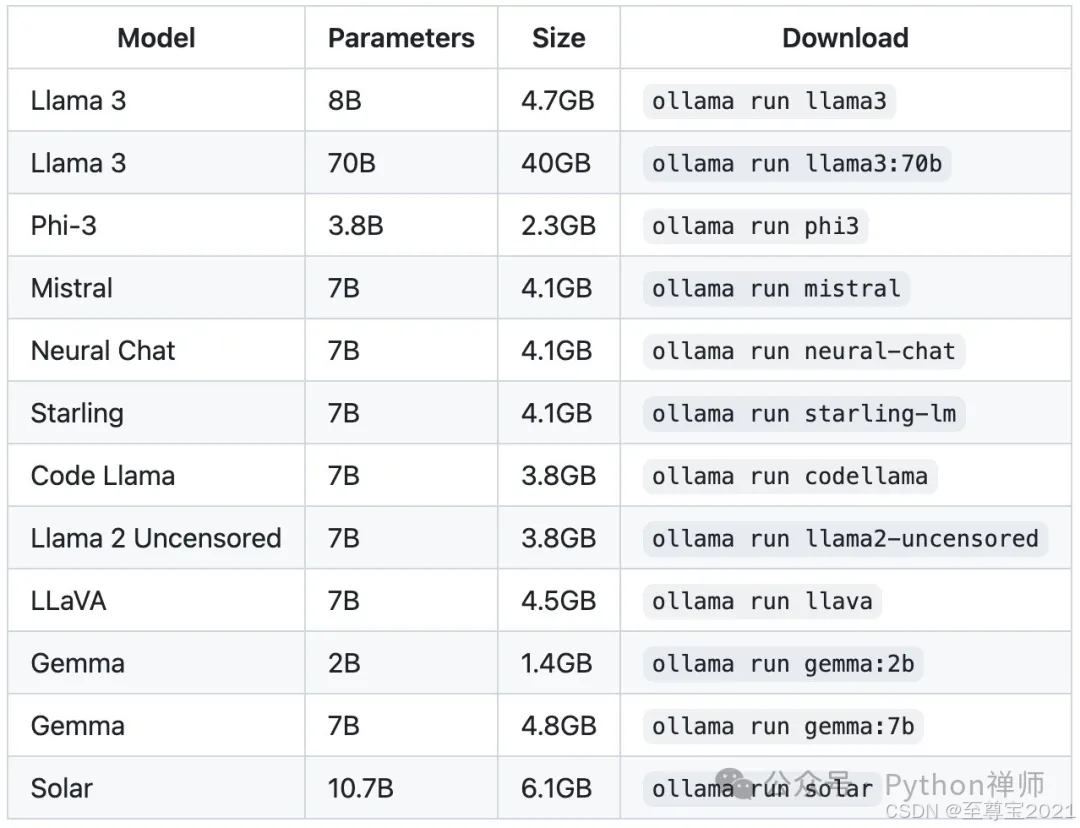
进入官网下载并安装,当前安装版本为v0.3.14。
环境配置:
OLLAMA_MODELS:模型文件存放目录,默认目录为当前用户目录(mac
目录:/Users/lisi/Documents/AI_model)。
OLLAMA_HOST:Ollama服务地址,默认为127.0.0.1,如果允许其他电脑访问
Ollama(如:局域网中的其他电脑),建议设置成0.0.0.0。
OLLAMA_PORT:Ollama
服务端口,默认为11434,如果端口有冲突,可以修改设置成其他端口(如:8080等),不修改端口就不用设置了。
OLLAMA_ORIGINS:HTTP
客户端请求来源,半角逗号分隔列表,若本地使用无严格要求,可以设置成星号*,代表不受限制。
大模型使用qwen2.5:3b
ollama pull qwen2.5:3b
Embedding 模型使用bge-large-zh-v1.5
ollama pull quentinz/bge-large-zh-v1.5
LangChain-Chatchat
LangChain-Chatchat (原 Langchain-ChatGLM)
基于 ChatGLM 等大语言模型与 Langchain 等应用框架实现,开源、可离线部署的 RAG 与 Agent 应用项目。
pip 安装部署
Python环境:3.8-3.11 环境
1.安装 Langchain-Chatchat
pip install langchain-chatchat -U
当前版本v0.3.1.3。
为避免依赖冲突,请将 Langchain-Chatchat 放在 Python 虚拟环境中, 比如 conda等。
2.初始化项目配置与数据目录
(1)设置 Chatchat 存储配置文件和数据文件的根目录
# on mac
export CHATCHAT_ROOT=/Users/lisi/Documents/chatchat_data
若不设置该环境变量,则自动使用当前目录。
(2)初始化
chatchat init
(3)修改配置文件
配置模型(model_settings.yaml)
主要修改DEFAULT_LLM_MODEL、DEFAULT_EMBEDDING_MODEL、LLM_MODEL_CONFIG、MODEL_PLATFORMS 等信息。
以下为示例配置:
# 模型配置项
# 默认选用的 LLM 名称
DEFAULT_LLM_MODEL: qwen2.5:3b
# 默认选用的 Embedding 名称
DEFAULT_EMBEDDING_MODEL: quentinz/bge-large-zh-v1.5
# AgentLM模型的名称 (可以不指定,指定之后就锁定进入Agent之后的Chain的模型,不指定就是 DEFAULT_LLM_MODEL)
Agent_MODEL: ''
# 默认历史对话轮数
HISTORY_LEN: 3
# 大模型最长支持的长度,如果不填写,则使用模型默认的最大长度,如果填写,则为用户设定的最大长度
MAX_TOKENS:
# LLM通用对话参数
TEMPERATURE: 0.7
# 支持的Agent模型
SUPPORT_AGENT_MODELS:
- chatglm3-6b
- glm-4
- openai-api
- Qwen-2
- qwen2-instruct
- gpt-3.5-turbo
- gpt-4o
# LLM模型配置,包括了不同模态初始化参数。
# `model` 如果留空则自动使用 DEFAULT_LLM_MODEL
LLM_MODEL_CONFIG:
preprocess_model:
model: ''
temperature: 0.05
max_tokens: 4096
history_len: 10
prompt_name: default
callbacks: false
llm_model:
model: ''
temperature: 0.9
max_tokens: 4096
history_len: 10
prompt_name: default
callbacks: true
action_model:
model: ''
temperature: 0.01
max_tokens: 4096
history_len: 10
prompt_name: ChatGLM3
callbacks: true
postprocess_model:
model: ''
temperature: 0.01
max_tokens: 4096
history_len: 10
prompt_name: default
callbacks: true
image_model:
model: sd-turbo
size: 256*256
# # 模型加载平台配置
MODEL_PLATFORMS:
- platform_name: ollama
platform_type: ollama
api_base_url: http://127.0.0.1:11434/v1
api_key: EMPTY
api_proxy: ''
api_concurrencies: 5
auto_detect_model: false
llm_models:
- llama3.2
- qwen2.5:3b
- qwen2.5:0.5b
embed_models:
- quentinz/bge-large-zh-v1.5
text2image_models: []
image2text_models: []
rerank_models: []
speech2text_models: []
text2speech_models: []
注意,MODEL_PLATFORMS需要删除ollama之外的所有其他工具的配置,仅保留ollama相关配置。
其他如知识库路径(basic_settings.yaml)、知识库(kb_settings.yaml)均可使用默认配置,需要修改可以参考Langchain-Chatchat说明文档。
(4)初始化知识库
chatchat kb -r
出现以下日志即为成功:
2024-10-29 14:04:23.055 | INFO | chatchat.server.knowledge_base.kb_cache.faiss_cache:save:40 - 已将向量库 ('samples', 'quentinz/bge-large-zh-v1.5') 保存到磁盘
----------------------------------------------------------------------------------------------------
知识库名称 :samples
知识库类型 :faiss
向量模型: :quentinz/bge-large-zh-v1.5
知识库路径 :/Users/lisi/Documents/chatchat_data/data/knowledge_base/samples
文件总数量 :12
入库文件数 :11
知识条目数 :728
用时 :0:04:40.090322
----------------------------------------------------------------------------------------------------
总计用时 :0:04:40.092750
(5)启动项目
chatchat start -a
Langchain-Chatchat Api Server:http://127.0.0.1:7861/
Langchain-Chatchat WebUI:http://127.0.0.1:8501/
3.构建知识库
(1)RAG对话
使用示例知识库 samples进行对话测试:
(2)知识库管理
1)新建知识库,注意名称不能含中文
2)导入本地文档,并添加文件到知识库
3)选择知识库,进行对话
到此就完成了在mac上Langchain-Chatchat与Ollama搭建本地离线知识库的部署!
更多推荐


 26
26 0
0- 0


 已为社区贡献1条内容

所有评论(0)