
uniapp整合百度OCR
·
第一步:注册百度云账号
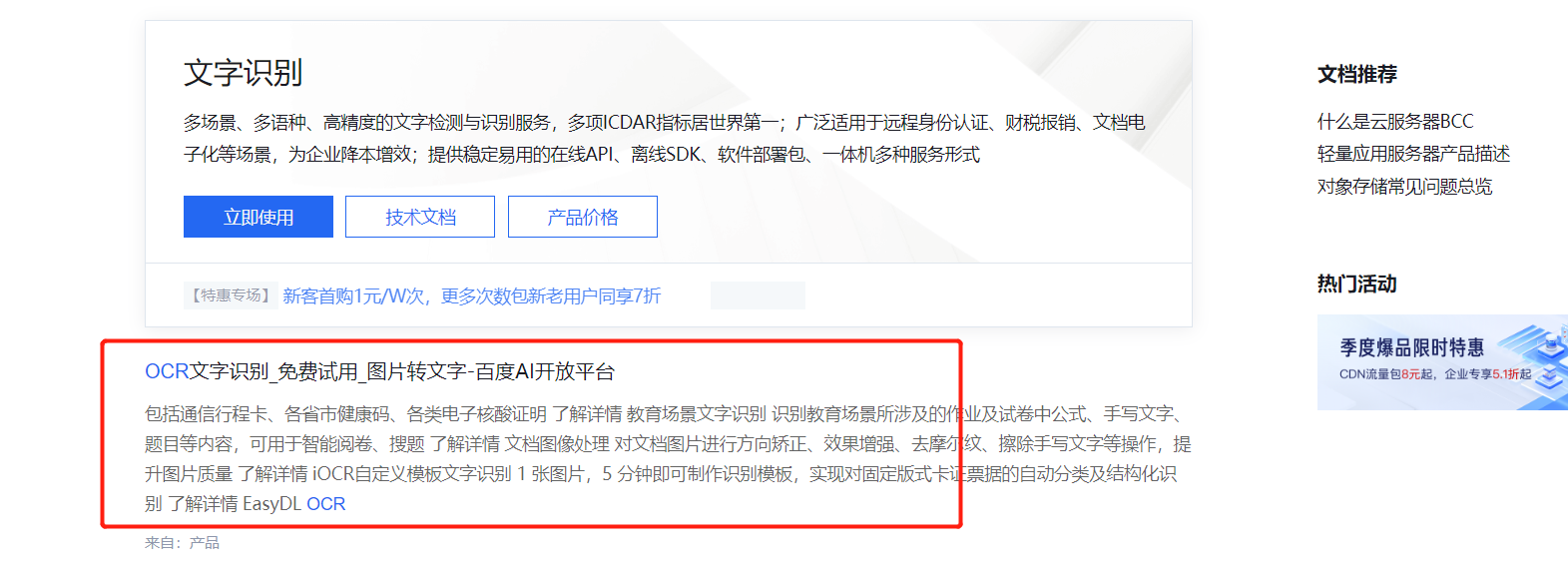
第二步:进入百度云点击控制台 -> 搜索OCR -> 根据情况创建应用
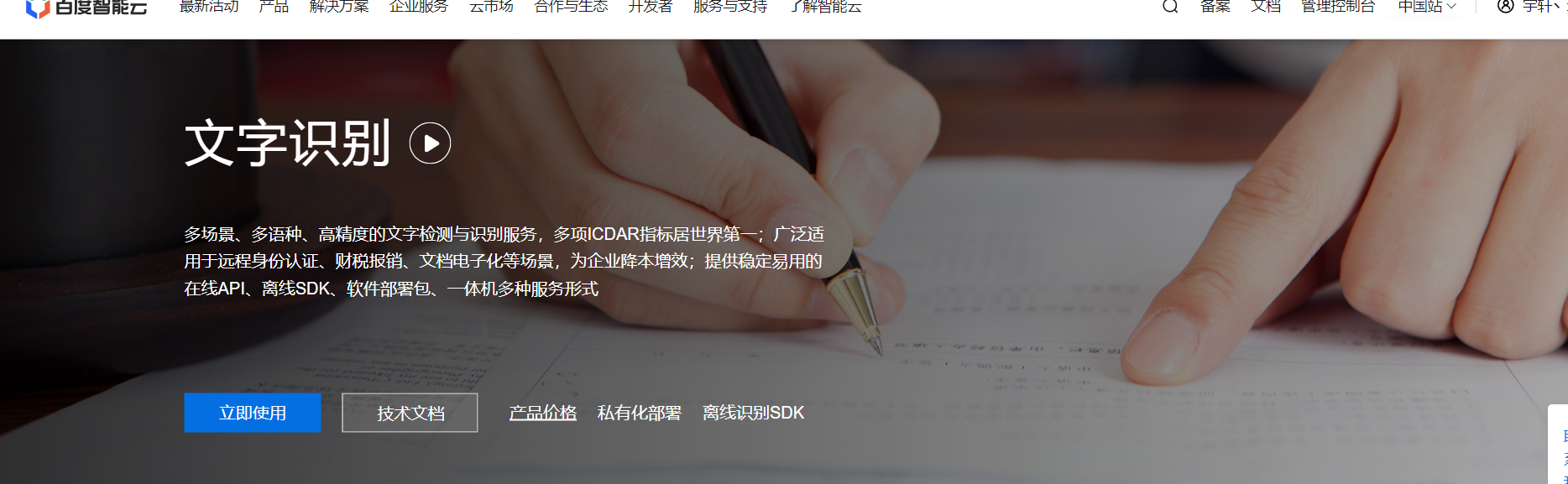
点击立即使用
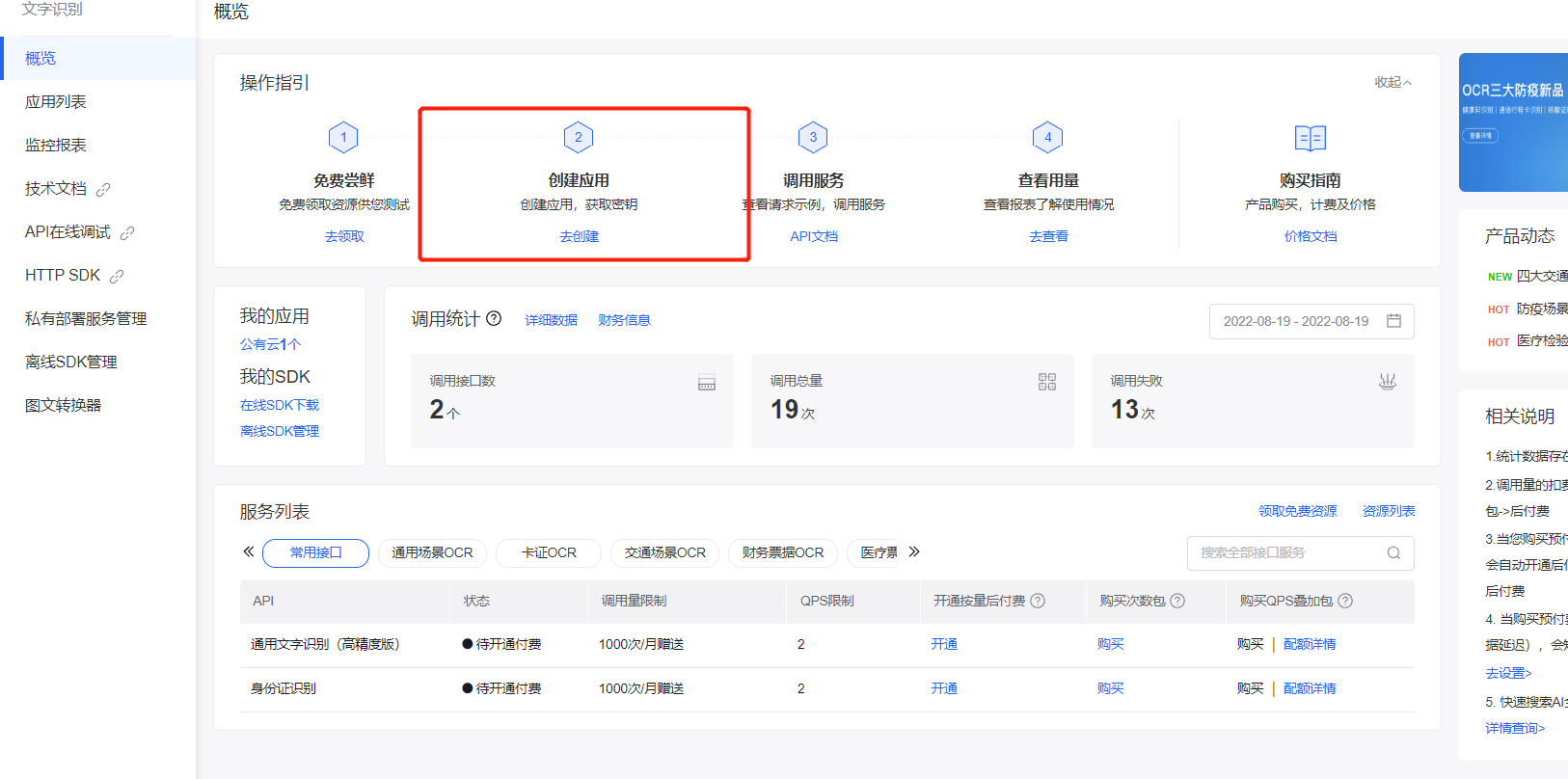
第三步:创建应用 获取AK、SK
第四步:填写相应的东西(可以随便填)
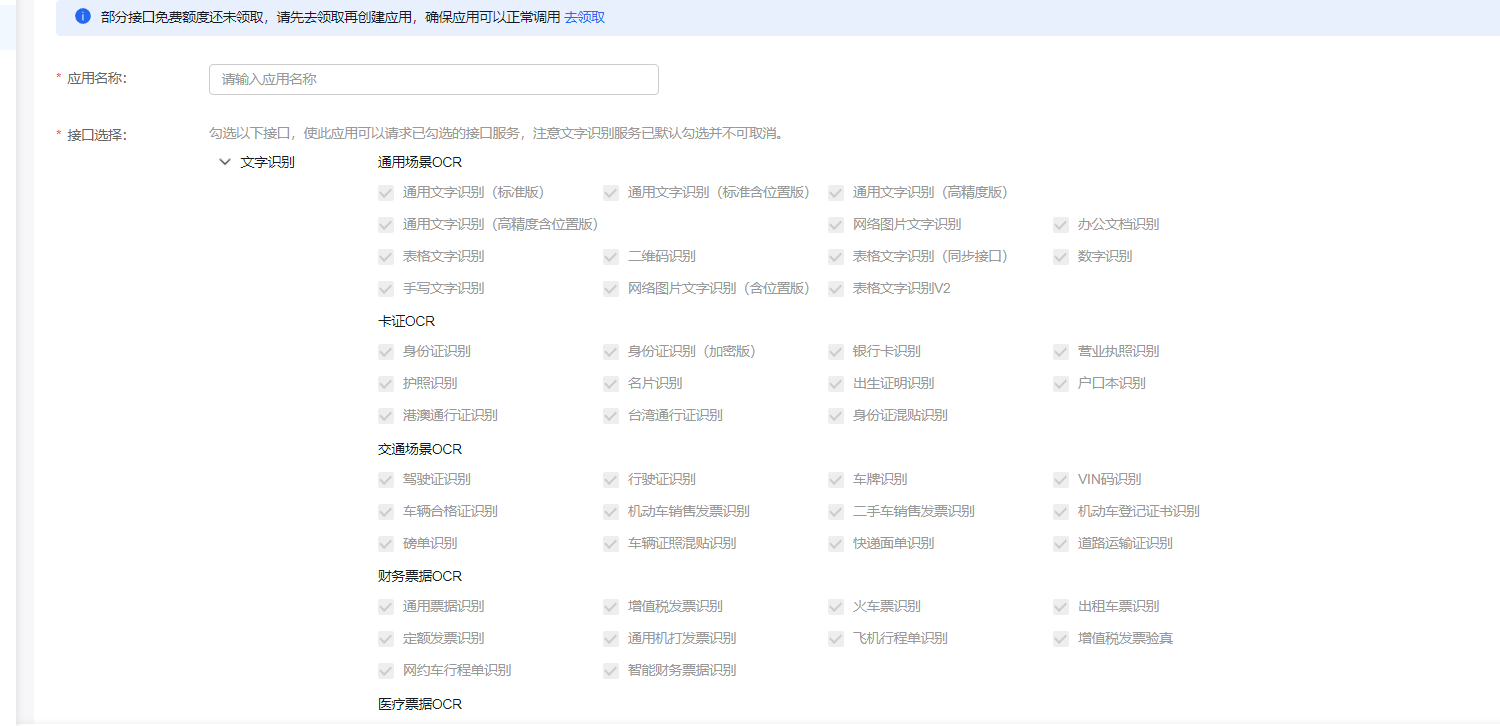
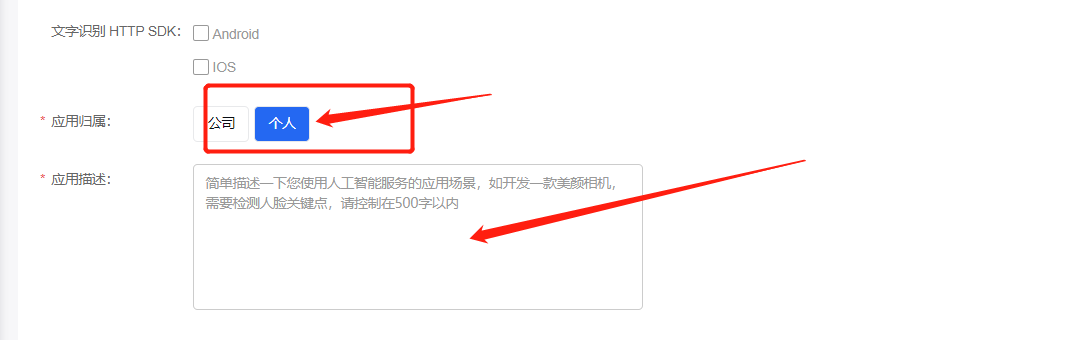
第五步:查看AK、SK

查看百度OCR Api文档
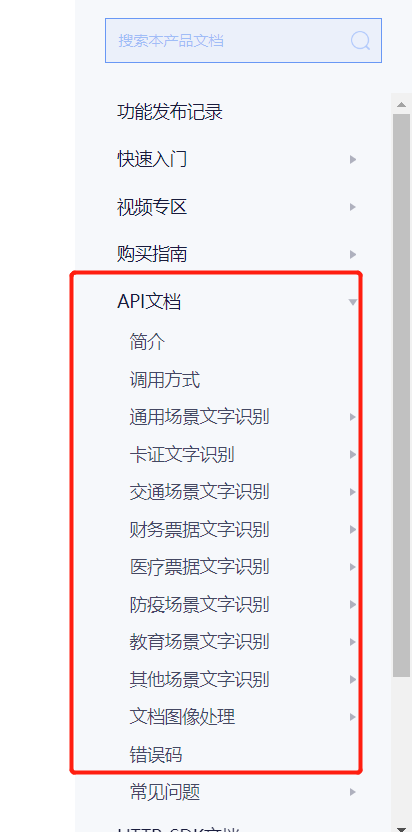
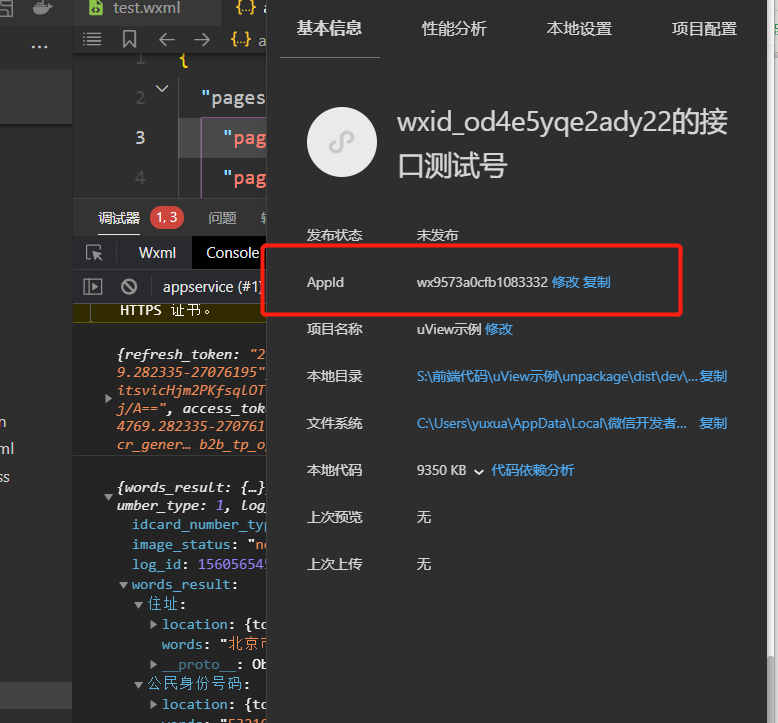
最重要的: 要想在uniapp中使用百度OCR的话 必须要运行在微信开发者工具里,不然会报错
其中微信小程序开发者运行的时候 要改的Appid 可以扫码获取的 如果是游客的话,运行不了
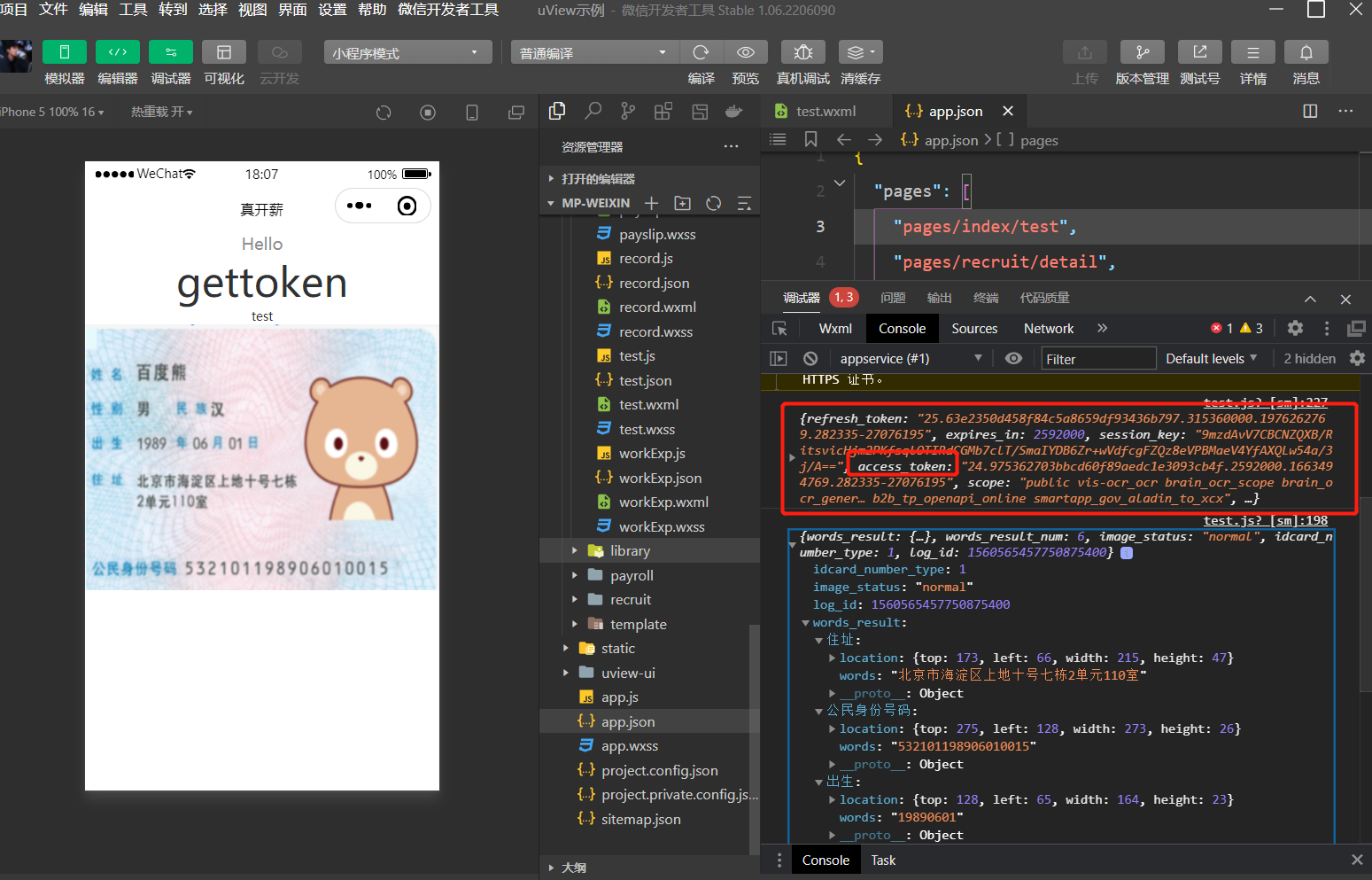
uniapp 使用百度OCR 进行身份证识别
<template>
	<view class="content">
		<!-- <image class="logo" src="/static/logo.png"></image> -->
		<view class="text-area">
			<text class="title">{{title}}</text>
		</view>
		<view class="" @click="getACSS_TOKEN" style="font-size: 36px;">
			gettoken
		</view>
		<view class="" @click="test">
			test
		</view>
		<image :src="base64str" mode=""></image>
	</view>
</template>

<script>
	export default {
		data() {
			return {
				title: 'Hello',
				apiKey: '',
				SecretKey: '',
				base64str: ''
			}
		},
		onLoad() {
			// 在百度智能云那边创建一个应用后可以获取到下面两个参数 api Key  和  Secret Key
			this.apiKey = uni.getStorageSync('apiKey')
			this.SecretKey = uni.getStorageSync('SecretKey')
		},
		methods: {
			test() {
				let that = this
				let access_token = uni.getStorageSync('access_token')

				uni.chooseImage({
				    count: 1, //默认9
				    sizeType: ['original', 'compressed'], //可以指定是原图还是压缩图,默认二者都有
				    sourceType: ['camera','album'], //从拍照或者相册选择
				    success: function (res) {

						let tempFilePaths = res.tempFilePaths[0]
						// 图片转 base64
						uni.getFileSystemManager().readFile({
							filePath: tempFilePaths, //选择图片返回的相对路径
							encoding: 'base64', //编码格式
							success: v=> { //成功的回调
								let base64 =  v.data // 返回的是没有 'data:image/jpeg;base64,'头的数据, 需要在页面显示图片可自行追加上
								that.base64str = 'data:image/jpeg;base64,' + base64

								// 开始识别
								uni.request({
									url: 'https://aip.baidubce.com/rest/2.0/ocr/v1/idcard?access_token=' + access_token,
									method: 'POST',
									data: {
										image: base64,
										id_card_side: 'front'// 身份证 正反面  front:身份证含照片的一面  back:身份证带国徽的一面
									},
									header: {
										'Content-Type': 'application/x-www-form-urlencoded'
									},
									success: res => {
										console.log(res.data)

									}
								});
							 }
						})


				    }
				});

			},
			// access_token 有效期为 2592000 秒 / 30天
			getACSS_TOKEN() {
				let that = this
				uni.request({
					url: 'https://aip.baidubce.com/oauth/2.0/token',
					method: 'POST',
					data: {
						grant_type: 'client_credentials',
						client_id: '5tiRo6aR7rMao1Yee0KQenu1',// 对应自己创建应用里获取的AK
						client_secret: 'AYuuPNliAQaQIIa1OZ4Rftwxwz0VVcGy'// 对应自己创建应用里获取的SK
					},
					header: {
						'Content-Type': 'application/x-www-form-urlencoded'
					},
					success: res => {
						console.log(res.data)
						uni.setStorageSync('access_token', res.data.access_token)
						// console.log(JSON.parse(res.data))
					}
				});
			}
		}
	}
</script>

<style>
	.content {
		display: flex;
		flex-direction: column;
		align-items: center;
		justify-content: center;
	}

	.logo {
		height: 200rpx;
		width: 200rpx;
		margin-top: 200rpx;
		margin-left: auto;
		margin-right: auto;
		margin-bottom: 50rpx;
	}

	.text-area {
		display: flex;
		justify-content: center;
	}

	.title {
		font-size: 36rpx;
		color: #8f8f94;
	}
</style>
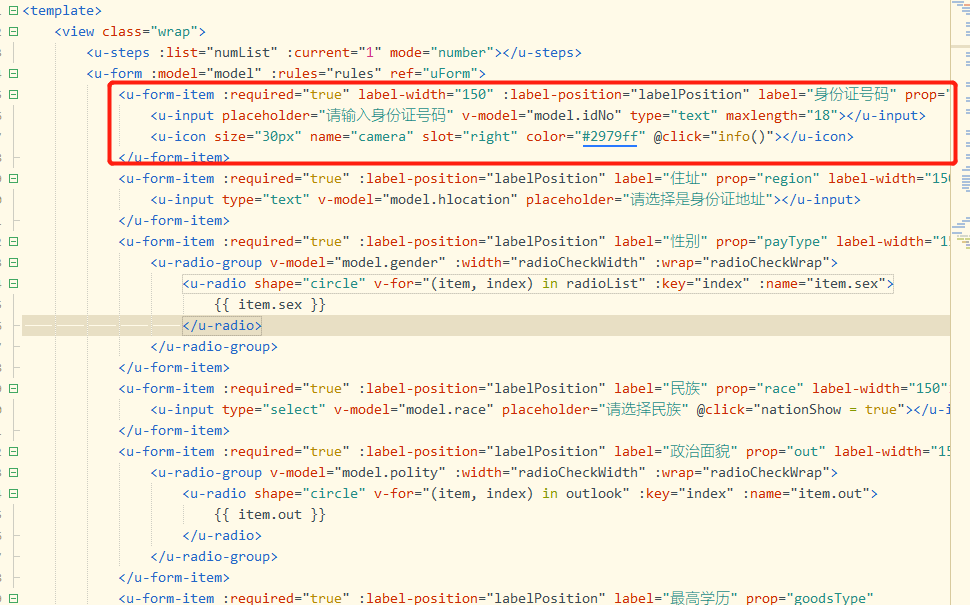
实战:结合表单
<template>
	<view class="wrap">
		<u-form :model="model" :rules="rules" ref="uForm">
			<u-form-item :required="true" label-width="150" :label-position="labelPosition" label="身份证号码" prop="idNo">
				<u-input placeholder="请输入身份证号码" v-model="model.idNo" type="text" maxlength="18"></u-input>
				<u-icon size="30px" name="camera" slot="right" color="#2979ff" @click="info()"></u-icon>
			</u-form-item>

		</u-form>


	</view>
</template>

<script>
	export default {
		data() {
			let that = this;
			return {
				model: {


					idNo: '',

				},

			};
		},
		onReady() {
			this.$refs.uForm.setRules(this.rules);
		},

		onLoad() {

			this.getToken()
		},
		methods: {
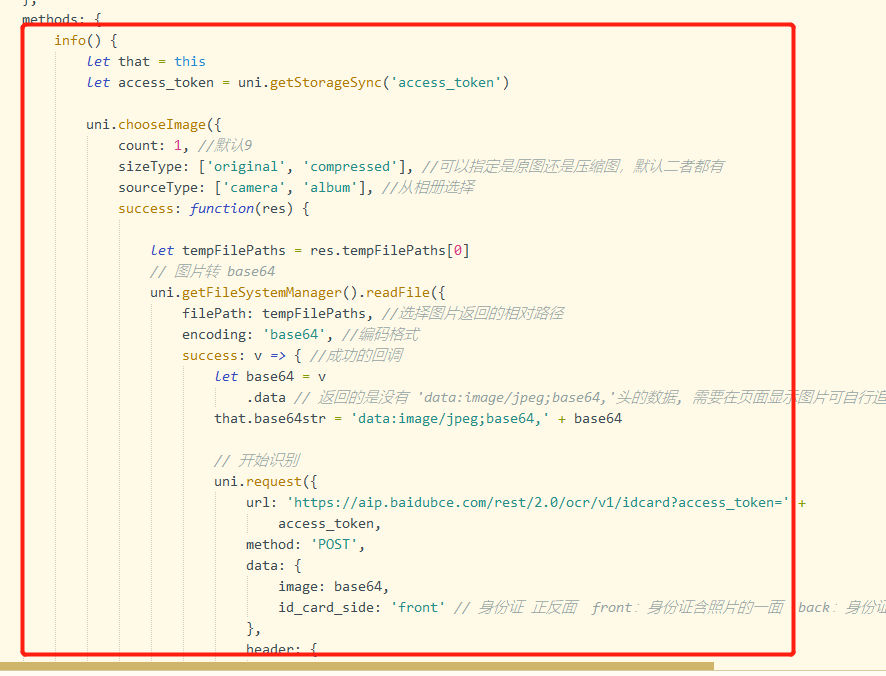
			info() {
				let that = this
				let access_token = uni.getStorageSync('access_token')

				uni.chooseImage({
					count: 1, //默认9
					sizeType: ['original', 'compressed'], //可以指定是原图还是压缩图,默认二者都有
					sourceType: ['camera', 'album'], //从相册选择 或者拍照
					success: function(res) {

						let tempFilePaths = res.tempFilePaths[0]
						// 图片转 base64
						uni.getFileSystemManager().readFile({
							filePath: tempFilePaths, //选择图片返回的相对路径
							encoding: 'base64', //编码格式
							success: v => { //成功的回调
								let base64 = v
									.data // 返回的是没有 'data:image/jpeg;base64,'头的数据, 需要在页面显示图片可自行追加上
								that.base64str = 'data:image/jpeg;base64,' + base64

								// 开始识别
								uni.request({
									url: 'https://aip.baidubce.com/rest/2.0/ocr/v1/idcard?access_token=' +
										access_token,
									method: 'POST',
									data: {
										image: base64,
										id_card_side: 'front' // 身份证 正反面  front:身份证含照片的一面  back:身份证带国徽的一面
									},
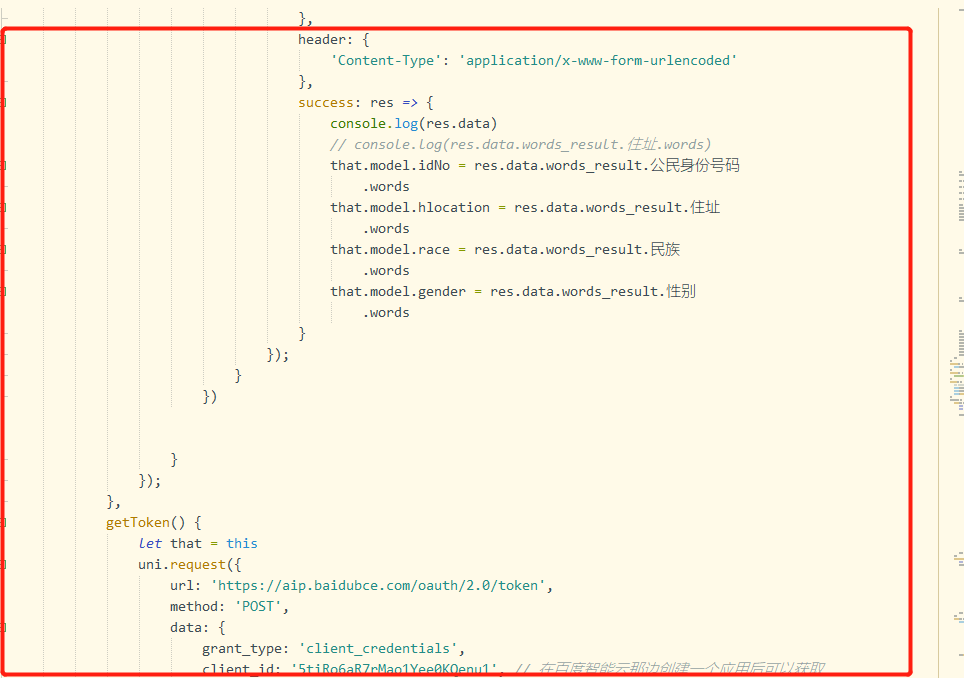
									header: {
										'Content-Type': 'application/x-www-form-urlencoded'
									},
									success: res => {
										console.log(res.data)
										// console.log(res.data.words_result.住址.words)
										that.model.idNo = res.data.words_result.公民身份号码
											.words
										that.model.hlocation = res.data.words_result.住址
											.words
										that.model.race = res.data.words_result.民族
											.words
										that.model.gender = res.data.words_result.性别
											.words
									}
								});
							}
						})


					}
				});
			},
			getToken() {
				let that = this
				uni.request({
					url: 'https://aip.baidubce.com/oauth/2.0/token',
					method: 'POST',
					data: {
						grant_type: 'client_credentials',
						client_id: '5tiRo6aR7rMao1Yee0KQenu1', // 在百度智能云那边创建一个应用后可以获取
						client_secret: 'AYuuPNliAQaQIIa1OZ4Rftwxwz0VVcGy' // 在百度智能云那边创建一个应用后可以获取
					},
					header: {
						'Content-Type': 'application/x-www-form-urlencoded'
					},
					success: res => {
						console.log(res.data)
						uni.setStorageSync('access_token', res.data.access_token)
						// console.log(JSON.parse(res.data))
					}
				});
			},

		}
	};
</script>

<style scoped lang="scss">
	.wrap {
		padding: 30rpx;
	}

	.row {
		margin-top: 35px;
		margin-left: 76px;
	}
</style>
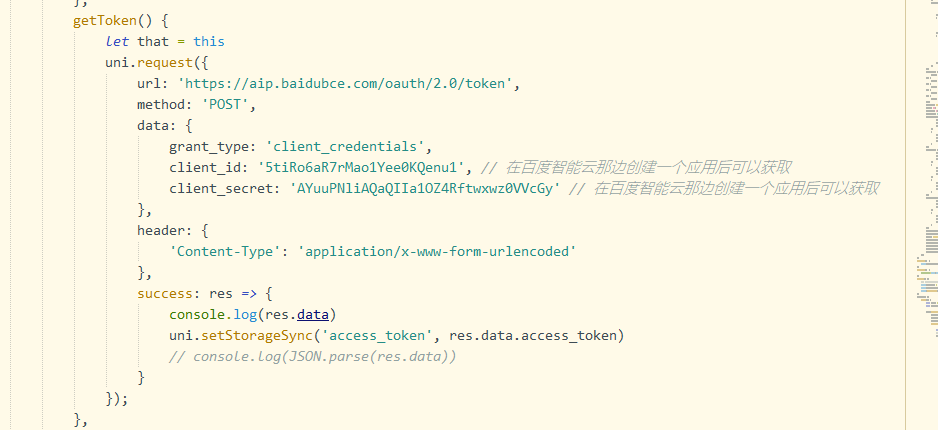
主动获取access_token变成 运行主动获取


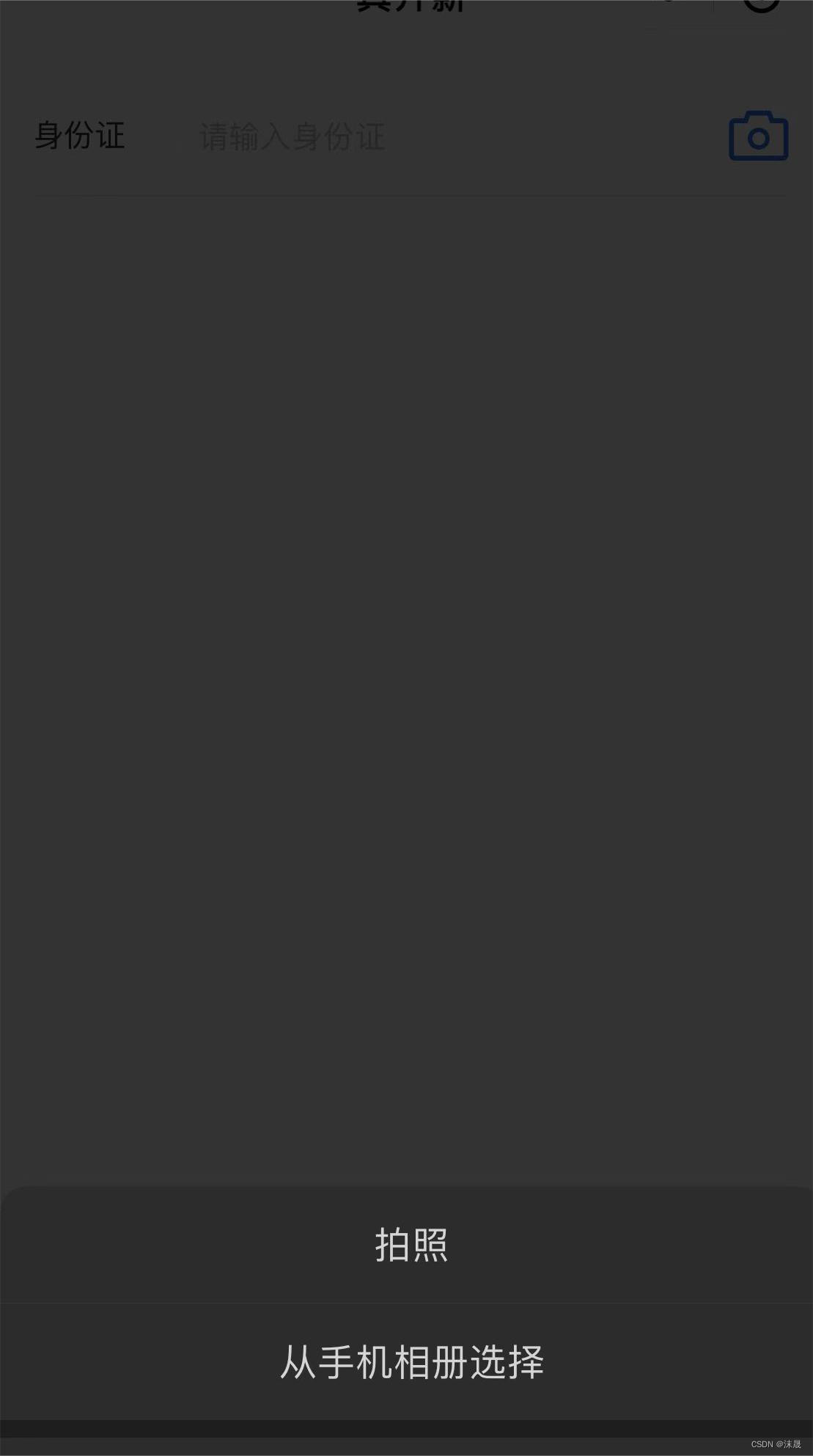
效果图
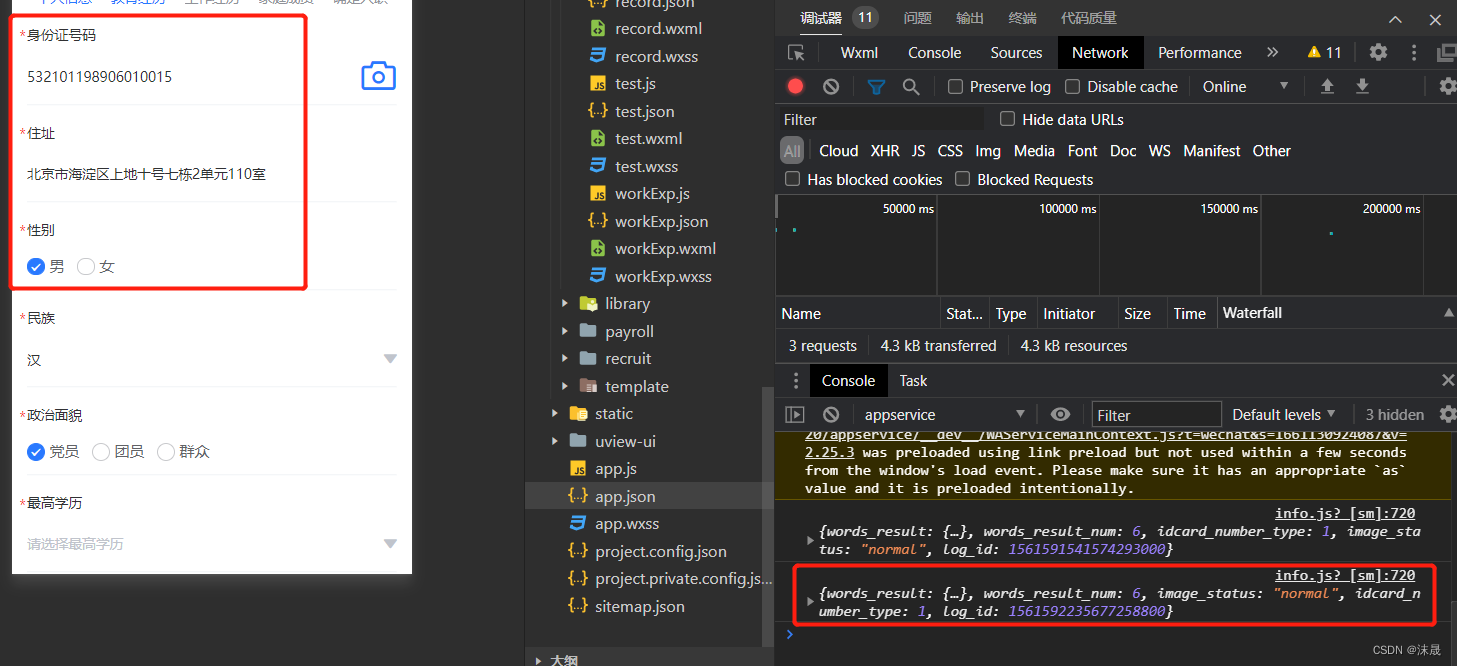
在手机上运行的效果,可以从相册获取也可以拍照获取
更多推荐

 10
10 0
0- 0


 已为社区贡献2条内容

所有评论(0)