
flutter的Container(2.0以上版本)
·
前言:
在flutter中Container是常用的一个标签,这里整理下他里面支持的属性和使用方法。注意我的是 2.0以上的版本,所以方法前没有new
目录:
decoration是 container 的修饰器,主要的功能是设置背景和边框。
boxShadow :阴影,阴影是BoxShadow的数组:其中阴影有4个参数;
gradient: 渐变,在图片之下展示,如果指定了渐变色,color属性就没用了
shape : 外观样式 ,BoxShape.circle==圆形图案,BoxShape.rectangle==方形图案;
八、transform 旋转,可以根据自己的需要调整旋转的角度
具体支持的参数和案例:
一、Alignment:相当于css的text-align
属性:
bottomCenter: 下部居中对齐。botomLeft: 下部左对齐。bottomRight:下部右对齐。center: 上下左右居中对齐。centerLeft: 纵向居中横向居左对齐。centerRight:纵向居中横向居右对齐。topLeft: 顶部左侧对齐。topCenter: 顶部居中对齐。topRight: 顶部居左对齐。
使用方法:
        child: Container(
                 alignment : Alignment.topCenter,
           ),
二、width:宽度
        child: Container(
                width: 68,
           ),
三、height:高
        child: Container(
                 height: 68,
),四、color:背景颜色
方法1:
        child: Container(
                color: Color(0xffffffff)
           ),
方法2:可设置透明度
        child: Container(
               color: Color.fromRGBO(0, 0, 0, .5),
           ),
方法3:
        child: Container(
                color:  Colors.white
),五、padding(only,all 两种)
方法1:单独设置某个边
Container(
        padding: EdgeInsets.only(left: 16),
     )
Container(
padding: EdgeInsets.only(left: 16,top:10,bottom:10,right:10 ),
)方法2:可以一次设置 左上右下
Container(
    //左上右下
   padding: EdgeInsets.fromLTRB(10.0, 50.0, 0.0, 0.0)
)
方法3:可以一次设置4个方法
Container(
   padding: EdgeInsets.all(10.0)  //四个方向都是设置10
)
六、margin(only,all 两种)
方法1:单独设置某个边
Container(
        margin: EdgeInsets.only(left: 16),
     )
Container(
margin: EdgeInsets.only(left: 16,top:10,bottom:10,right:10 ),
)方法2:可以一次设置 左上右下
Container(
    //左上右下
   margin: EdgeInsets.fromLTRB(10.0, 50.0, 0.0, 0.0)
)
方法3:可以一次设置4个方法
Container(
   margin: EdgeInsets.all(10.0)  //四个方向都是设置10
)
七、decoration
decoration是 container 的修饰器,主要的功能是设置背景和边框。
参数:
- color 背景颜色(*如果这个颜色指定了,最外层的颜色就不能用了,否则会报错,二者不可兼容*)。
- image 背景图片
- border 边框
- borderRadius 边框圆角
- boxShadow 阴影
- gradient 渐变,在图片之下展示,如果指定了渐变色,color属性就没用了
- backgroundBlendMode 混合模式应用于框的[颜色]或[渐变]背景,如果没有颜色或者渐变色,这个属性就没有效果
- shape 外观样式 :BoxShape.circle==圆形图案,BoxShape.rectangle==方形图案;
使用方法:
color :背景色
Container(
  decoration: BoxDecoration(
    color:Color.fromRGBO(81, 200, 221,1),//背景色,如果这个颜色指定了,最外层的颜色就不能用了,否则会报错,二者不可兼容
 ),
)
image:背景图片,有两种,一种是线上的,一种是本地的
Container(
  decoration: BoxDecoration(
    image: DecorationImage(// 背景图片
      image: NetworkImage('在线地址'), //NetworkImage里面是https:// 在线的地址
//二选一:
      image: AssetImage("images/avatar.png"), //本地地址

    ),
 ),
)
border:四个边和,单个边
Container(
  decoration: BoxDecoration(

    //设置四个的边框
    border: Border.all(width: 1.0, color: Colors.white),

    //设置单个的边框
    border: Border(
        left: BorderSide(
          width: 0.5,//宽度
          style: BorderStyle.solid,
          color:Color(0xffffffff), //边框颜色
        ),
        top: BorderSide(
          width: 0.5,//宽度
          style: BorderStyle.solid,
          color:Color(0xffffffff), //边框颜色
        ),
        bottom: BorderSide(
          width: 0.5,//宽度
          style: BorderStyle.solid,
          color:Color(0xffffffff), //边框颜色
        )
    )//border


 ),
)
borderRadius : 边框圆角,有好几种写法
Container(
  decoration: BoxDecoration(

    //设置四个的圆角(方法1),设置圆角不需要设置边框也可以
    borderRadius: BorderRadius.all(Radius.circular(10.0)),
    //设置四个的圆角(方法2)
    borderRadius: BorderRadius.circular(4)


    //左上和左下设置圆角
    borderRadius: BorderRadius.horizontal( left: Radius.circular(10))
    //右上和右下设置圆角
    borderRadius: BorderRadius.horizontal( right: Radius.circular(10))


    //左上和右上设置圆角
    borderRadius: BorderRadius.vertical( top: Radius.circular(6))
    //左下和右下设置圆角
    borderRadius: BorderRadius.vertical( bottom: Radius.circular(6))


    //设置单个方向的圆角
    borderRadius: BorderRadius.only(
        topLeft: Radius.circular(10),    //左上
        topRight: Radius.circular(4),    //右上
        bottomLeft: Radius.circular(6),  //左下
        bottomRight: Radius.circular(20) //右下
    )


 ),
)
boxShadow :阴影,阴影是BoxShadow的数组:其中阴影有4个参数;
Container(
decoration: BoxDecoration(
BoxShadow(
color: Colors.green, //阴影的颜色
offset: Offset(50, 100), //偏移量,Offset第一个参数为x轴的偏移量,正值向右,负值向左,第二个参数是y轴的偏移量,正值向下,负值向上
blurRadius: 20, //这个是高斯模糊的半径,半径越大阴影越模糊,半径越小阴影越清晰
spreadRadius: 10 //这个扩散的半径,半径越大阴影面积越大,值越小阴影面积越小
)
),
)
gradient: 渐变,在图片之下展示,如果指定了渐变色,color属性就没用了
支持三种LinearGradient(线性渐变),的RadialGradient(径向渐变)和 SweepGradient (扫描渐变)
Container(
decoration: BoxDecoration(
gradient: const LinearGradient( //LinearGradient:线性渐变
colors: [Colors.lightBlue,Colors.purple,Colors.greenAccent]
),
),
)
shape : 外观样式 ,BoxShape.circle==圆形图案,BoxShape.rectangle==方形图案;
Container(
decoration: BoxDecoration(
shape: BoxShape.circle, //圆形图案
shape: BoxShape.rectangle, //方形图案
),
)
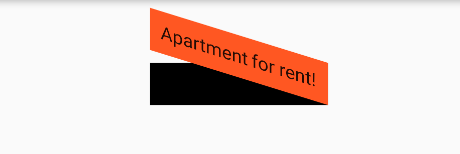
八、transform 旋转,可以根据自己的需要调整旋转的角度
1、倾斜
 Container(
     transform: Matrix4.skewY(0.3) //沿Y轴倾斜0.3弧度
 ),
2、平移
Transform.translate(
    offset: Offset(-20.0, -5.0),
    child: Text("Hello world"),
),...等等,太多了,详情点我
九、child 子view
1、直接写个文字的text
Container(
child:Text('Hello world',style: TextStyle(fontSize: 40.0,color: Colors.white)),
)2、写其他标签 ,比如: Column
Container(
child: Column(
children: <Widget>[
Text('手拉手模型', style: TextStyle(fontSize: 30.nsp, fontWeight: FontWeight.w500, color: Color(0xff5E6573))),
Text('24:27', style: TextStyle(fontSize: 25.nsp, fontWeight: FontWeight.w500, color: Color(0xff9EA4AF))),
]
)
)到此为止!
更多推荐



 3
3 0
0- 0


 已为社区贡献4条内容

所有评论(0)