
PySide(PyQt),QGraphicsView 类的橡皮筋选择框的 rubberBandChanged 信号与拖动模式QGraphicsView.DragMode
·
rubberBandChanged 信号
在 PySide6 中,QGraphicsView 类的 rubberBandChanged 信号在橡皮筋选择框的状态发生变化时被发射。橡皮筋选择框是用户通过鼠标拖动在视图中创建的一个矩形框,常用于选择 QGraphicsScene 中的多个图形项。
信号原型
rubberBandChanged 信号的原型如下:
rubberBandChanged(QRect viewRect, QPointF fromScenePoint, QPointF toScenePoint)
该信号携带三个参数:
viewRect:QRect类型,表示在QGraphicsView视图坐标系下橡皮筋选择框的矩形区域。视图坐标系是以QGraphicsView的左上角为原点,水平向右为 x 轴正方向,垂直向下为 y 轴正方向。fromScenePoint:QPointF类型,表示橡皮筋选择框起始点在QGraphicsScene场景坐标系下的位置。场景坐标系是整个QGraphicsScene的坐标系,图形项在场景中使用该坐标系进行定位。toScenePoint:QPointF类型,表示橡皮筋选择框结束点在QGraphicsScene场景坐标系下的位置。
信号触发时机
当用户开始拖动鼠标创建橡皮筋选择框、拖动过程中橡皮筋选择框的大小和位置发生变化,或者释放鼠标结束橡皮筋选择框,rubberBandChanged 信号都会被发射。
示例代码
import sys
from PySide6.QtWidgets import QApplication, QGraphicsView, QGraphicsScene, QGraphicsRectItem
from PySide6.QtCore import Qt, QPointF
from PySide6.QtGui import QPen, QBrush

class MyGraphicsView(QGraphicsView):
    def __init__(self):
        super().__init__()
        # 创建场景
        scene = QGraphicsScene(self)
        self.setScene(scene)

        # 在场景中添加一个矩形项
        rect_item = QGraphicsRectItem(0, 0, 100, 100)
        rect_item.setPen(QPen(Qt.red))
        rect_item.setBrush(QBrush(Qt.yellow))
        scene.addItem(rect_item)

        # 启用橡皮筋选择
        self.setDragMode(QGraphicsView.RubberBandDrag)

        # 连接 rubberBandChanged 信号
        self.rubberBandChanged.connect(self.on_rubber_band_changed)

    def on_rubber_band_changed(self, viewRect, fromScenePoint, toScenePoint):
        print(f"视图矩形区域: {viewRect}")
        print(f"场景起始点: {fromScenePoint}")
        print(f"场景结束点: {toScenePoint}")

if __name__ == '__main__':
    app = QApplication(sys.argv)
    view = MyGraphicsView()
    view.show()
    sys.exit(app.exec())
演示截图:
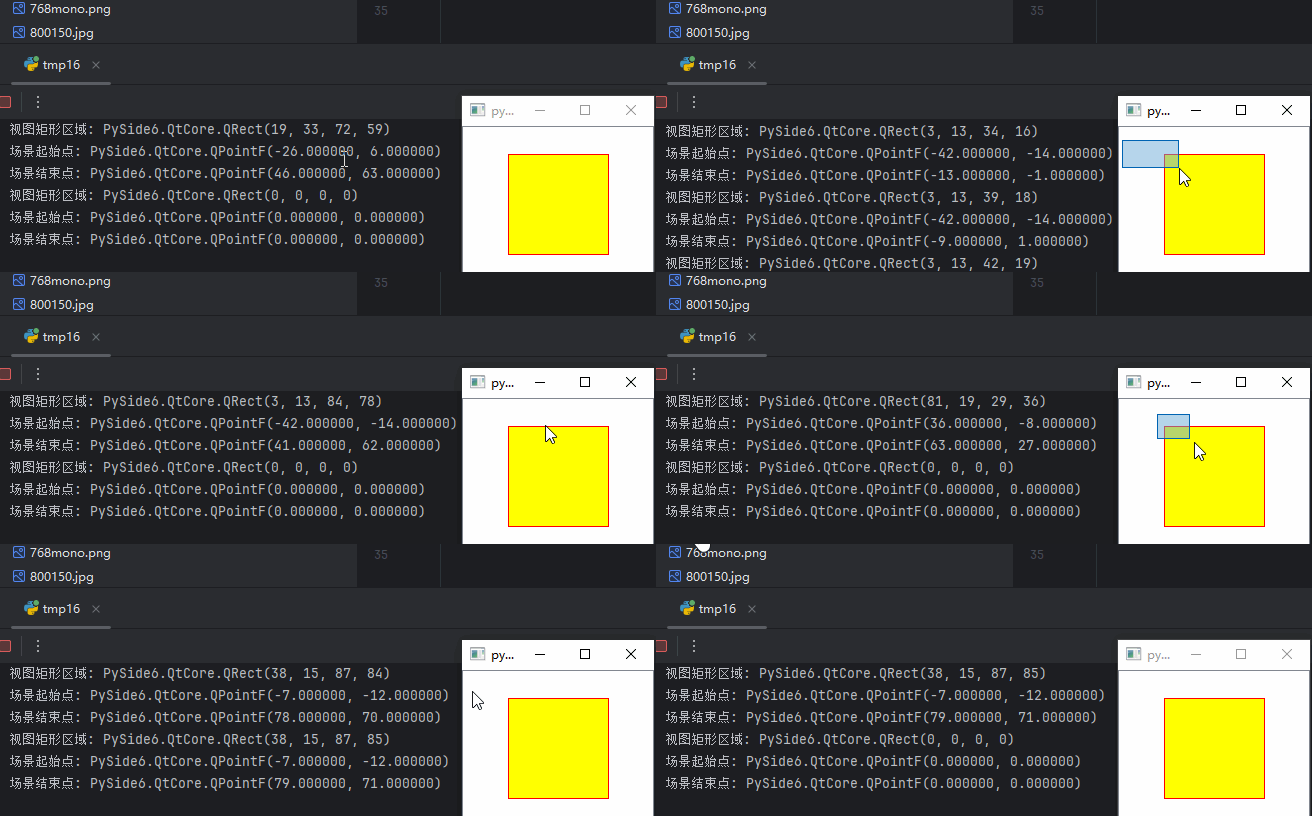
从运行结果看得出,当松开鼠标时,发送了一个全0信号,用以复位矩形区域,可以将其作为选择结束的标志,来进行下一步的操作。比如,可以将其作为一个绘制矩形框的工具:这在CV领域的应用很广泛。
import sys
from PySide6.QtWidgets import QApplication, QGraphicsView, QGraphicsScene, QGraphicsRectItem, QGraphicsPixmapItem
from PySide6.QtCore import Qt, QPointF, QRect
from PySide6.QtGui import QPen, QBrush, QPixmap


class MyGraphicsView(QGraphicsView):
    def __init__(self):
        super().__init__()
        # 创建场景
        scene = QGraphicsScene(self)
        self.setScene(scene)
        scene.setSceneRect(0, 0, 800, 600)

        # 在场景中添加一个矩形项
        self.rect_item = QGraphicsRectItem(0, 0, 0, 0)
        self.rect_item.setPen(QPen(Qt.red, 2))
        scene.addItem(self.rect_item)

        # 启用橡皮筋选择
        self.setDragMode(QGraphicsView.RubberBandDrag)

        # 连接 rubberBandChanged 信号
        self.rubberBandChanged.connect(self.on_rubber_band_changed)

    def on_rubber_band_changed(self, viewRect, fromScenePoint, toScenePoint):
        if not (viewRect == QRect(0, 0, 0, 0) and fromScenePoint == QPointF(0.0, 0.0) and toScenePoint == QPointF(
            0.0, 0.0)):
            self.fromScenePoint = fromScenePoint
            self.toScenePoint = toScenePoint
            self.rect_item.setRect(0,0,0,0)

        else:
            # 计算矩形的宽度和高度
            width = self.toScenePoint.x() - self.fromScenePoint.x()
            height = self.toScenePoint.y() - self.fromScenePoint.y()

            self.rect_item.setRect(self.fromScenePoint.x(),self.fromScenePoint.y(),width,height)


if __name__ == '__main__':
    app = QApplication(sys.argv)
    view = MyGraphicsView()
    view.show()
    sys.exit(app.exec())
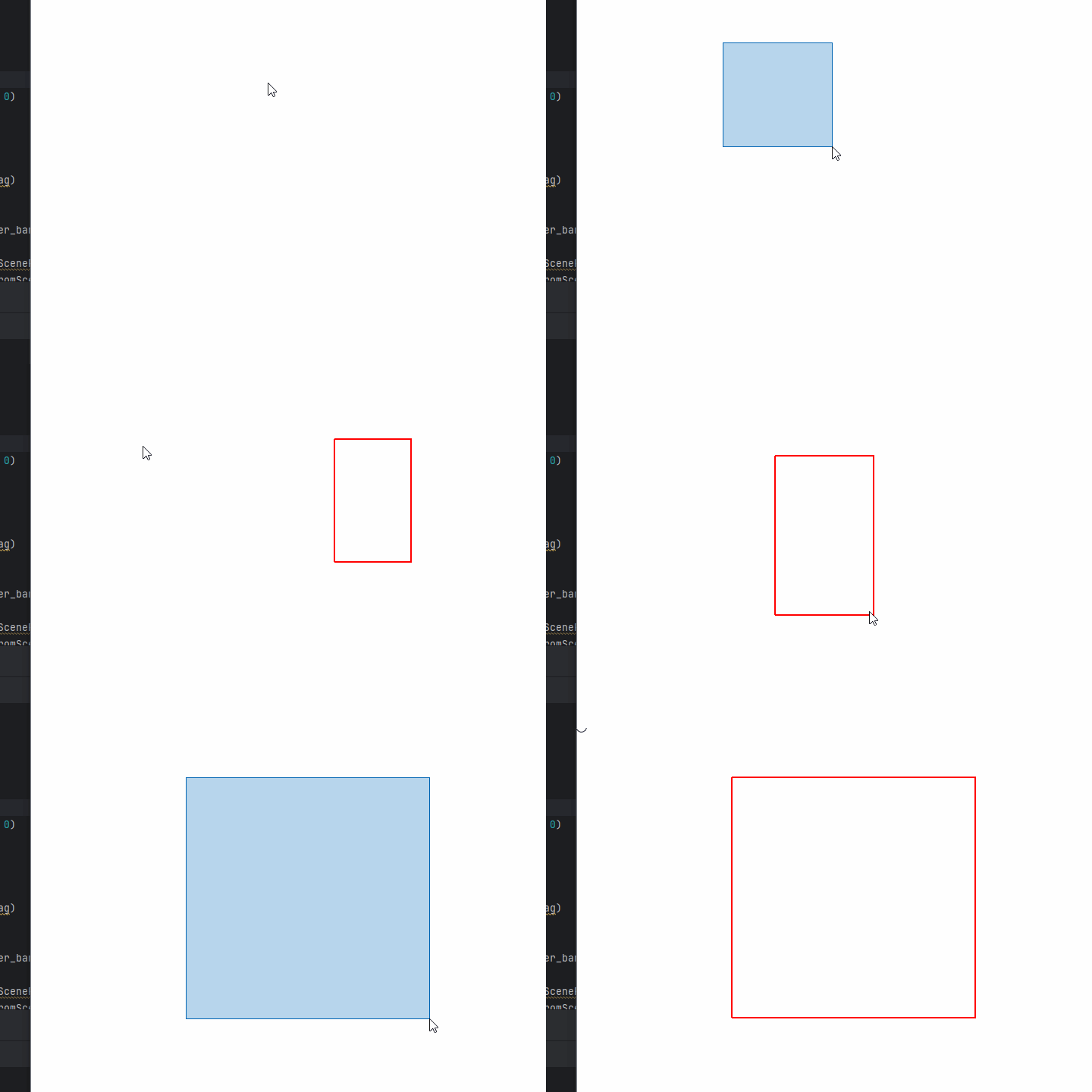
setDragMode()函数
在 PySide6 里,QGraphicsView 类的 setDragMode() 函数用于设定视图的拖动模式,此模式决定了用户在视图里进行鼠标拖动操作时的行为表现。
函数原型
setDragMode(QGraphicsView.DragMode mode)
该函数接收一个 QGraphicsView.DragMode 类型的参数 mode,这个参数定义了不同的拖动模式。
常见的拖动模式
QGraphicsView.DragMode 是一个枚举类型,下面是一些常见的拖动模式及其解释:
1. QGraphicsView.NoDrag
- 描述:禁止拖动操作。当设置为该模式时,用户在视图中进行鼠标拖动不会触发任何特殊行为。
- 示例代码:
view.setDragMode(QGraphicsView.NoDrag)
2. QGraphicsView.ScrollHandDrag
- 描述:手形拖动模式。用户在视图中按下鼠标左键并拖动时,视图会像用手抓住并移动地图一样进行滚动。这常用于在大场景中移动视野。
- 示例代码:
view.setDragMode(QGraphicsView.ScrollHandDrag)
3. QGraphicsView.RubberBandDrag
- 描述:橡皮筋选择模式。用户按下鼠标左键并拖动时,会在视图中创建一个橡皮筋选择框(一个可调整大小的矩形框),用于选择
QGraphicsScene中的多个图形项。当释放鼠标时,橡皮筋选择框消失,并且可以根据选择框的范围确定被选中的图形项。 - 示例代码:
view.setDragMode(QGraphicsView.RubberBandDrag)
完整示例代码
以下是一个包含不同拖动模式设置的完整示例:
import sys
from PySide6.QtWidgets import QApplication, QGraphicsView, QGraphicsScene, QGraphicsRectItem
from PySide6.QtCore import Qt
from PySide6.QtGui import QPen, QBrush

class MyGraphicsView(QGraphicsView):
    def __init__(self):
        super().__init__()
        # 创建场景
        scene = QGraphicsScene(self)
        self.setScene(scene)

        # 在场景中添加一个矩形项
        rect_item = QGraphicsRectItem(0, 0, 100, 100)
        rect_item.setPen(QPen(Qt.red))
        rect_item.setBrush(QBrush(Qt.yellow))
        scene.addItem(rect_item)

        # 设置拖动模式,这里可以修改为不同的模式
        self.setDragMode(QGraphicsView.RubberBandDrag)

if __name__ == '__main__':
    app = QApplication(sys.argv)
    view = MyGraphicsView()
    view.show()
    sys.exit(app.exec())
更多推荐


 3
3 0
0- 0


 已为社区贡献6条内容

所有评论(0)