
Element-Puls中el-upload组件结合vue-draggable-plus实现上传支持拖拽排序(并保留el-upload原有样式、预览、删除)等功能
·
展示效果
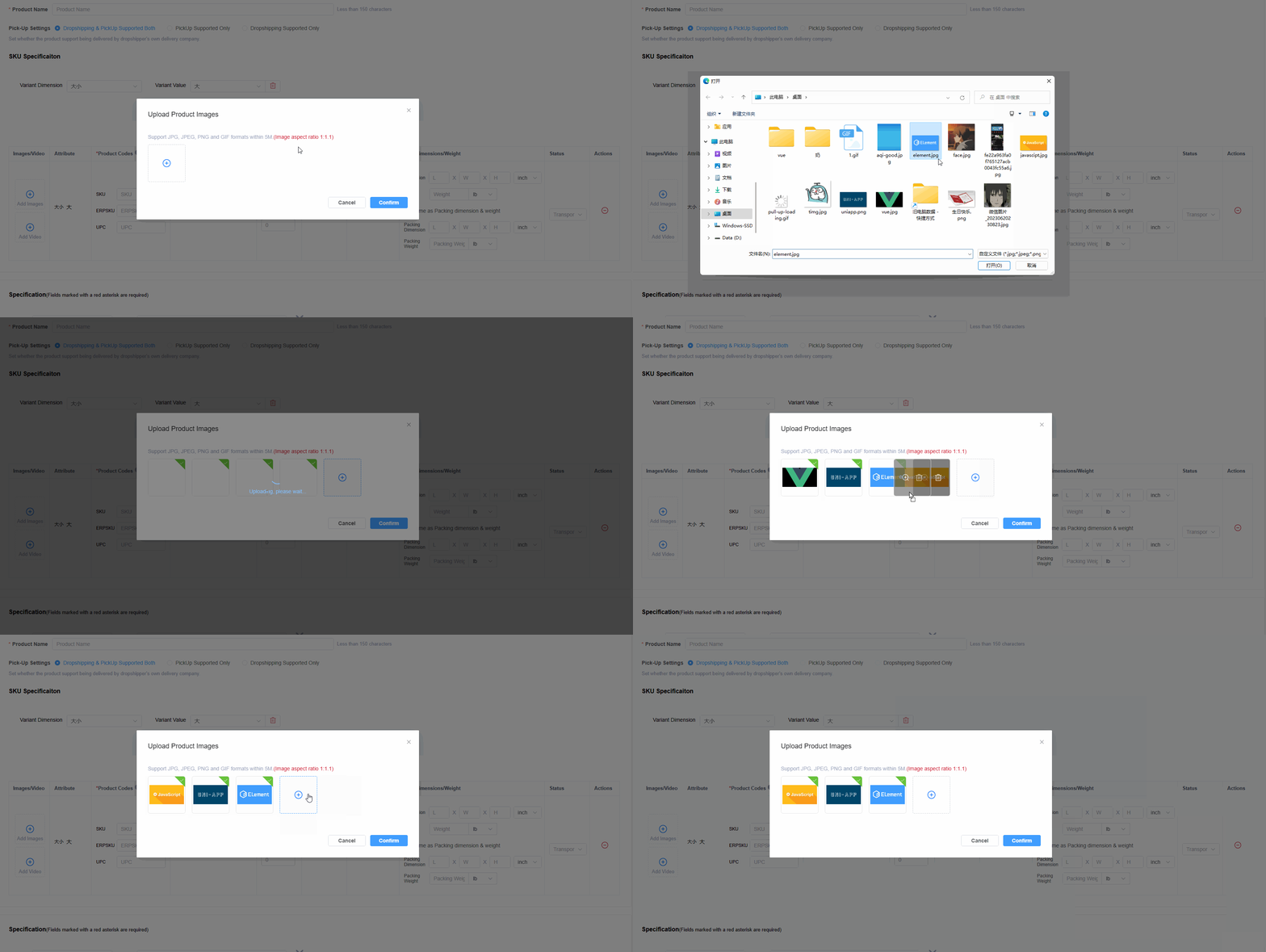
需求
需求想要一个可拖拽排序的图片列表,但是发现el-upload虽然可以实现照片墙,但是没办法拖拽
实现思路
使用 vue-draggable-plus 拖拽插件,隐藏Upload原有的已上传文件列表,自定义上传后文件列表的样式并绑定预览和删除功能
安装VueDraggablePlus库 (尤雨溪推荐)
功能齐全:全面继承 Sortable.js 的所有功能
无缝迁移:适用于 Vue 3 和 Vue2
灵活使用:支持组件、指令、函数式调用
类型强:用 TypeScript 编写,带有完整的 TS 文档
数据绑定:支持 v-model 双向绑定,不需要单独维护排序数据
自定义容器:可以自定某个容器作为拖拽容器,比 Sortable.js 更灵活
安装指令
npm install vue-draggable-plus
yarn add vue-draggable-plus
pnpm add vue-draggable-plus
使用(组件方式)
封装成公共组件 /src/components/DraggableImageUpload/index.vue
HTML代码
<template>
  <div class="draggable_image_upload">
    <VueDraggable class="box-uploader" ref="draggableRef" v-model="curList" :animation="600" easing="ease-out"
      ghostClass="ghost" draggable="ul" @start="onStart" @update="onUpdate">
      <!-- 使用element-ui el-upload自带样式 -->
      <ul v-for="(item, index) in curList" :key="index" class="el-upload-list el-upload-list--picture-card">
        <li class="el-upload-list__item is-success animated">
          <el-image class="originalImg" :src="item.url" :preview-src-list="[item.url]" />
          <!--           <el-icon>
            <Close />
          </el-icon> -->
          <label class="el-upload-list__item-status-label">
            <el-icon class="el-icon--upload-success el-icon--check">
              <Check />
            </el-icon>
          </label>
          <span class="el-upload-list__item-actions">
            <!-- 预览    -->
            <span class="el-upload-list__item-preview" @click="handleImgPreview('originalImg', index)">
              <el-icon>
                <ZoomIn />
              </el-icon>
            </span>
            <!-- 删除    -->
            <span class="el-upload-list__item-delete" @click="onImageRemove(item.url)">
              <el-icon>
                <Delete />
              </el-icon>
            </span>
          </span>
        </li>
      </ul>
      <!-- 上传组件 -->
      <el-upload ref="uploadImages" :show-file-list="false" :multiple="multiple" :auto-upload="autoUpload" action="#"
        :on-change="onSkuImgSelect" :on-exceed="(file: any, fileList: any) => ElMessage.warning($t('reg.tip.imgLimit'))"
        :file-list="curList" list-type="picture-card" accept=".jpg,.jpeg,.png,.gif" :limit="limit"
        style="display: inline;">
        <ElImage class="circle-plus" :src="$getIconUrl('circle-plus', 'svg')" fit="scale-down" />
      </el-upload>
    </VueDraggable>
  </div>
</template>
JavaScript代码
<script name="DraggableImageUpload" setup lang="ts">
import { Upload } from '@/api/business/product';
import utils from '@/utils/utils';
import { ComponentInternalInstance, getCurrentInstance } from 'vue';

import { type UseDraggableReturn, VueDraggable } from 'vue-draggable-plus'
const draggableRef = ref<UseDraggableReturn>()

const { proxy } = getCurrentInstance() as ComponentInternalInstance;

const props = defineProps({
  //接受上传的文件类型(thumbnail-mode 模式下此参数无效)
  accept: {
    type: String,
    default: ".jpg,.jpeg,.png"
  },
  //允许上传文件的最大数量
  limit: {
    type: Number,
    default: 9999
  },
  //是否支持多选文件
  multiple: {
    type: Boolean,
    default: true
  },
  //是否自动上传文件
  autoUpload: {
    type: Boolean,
    default: false
  },
  modelValue: {
    type: Array,
    default: () => []
  },
});

const data = reactive<any>({
  maxImgsLen: 0,
  imgList: [],
});

const { maxImgsLen, imgList} = toRefs(data)

const emit = defineEmits(["update:modelValue"]);
const curList: any = computed({
  get() {
    return props.modelValue;
  },
  set(newValue) {
    emit("update:modelValue", newValue);
  }
});

//元素开始拖拽
const onStart = () => {
  console.log('start')
}

//元素顺序更新时触发
const onUpdate = () => {
  console.log(curList.value, 'update++++++++++++++')
}

// 图片预览
const handleImgPreview = (domClass: string, index: number) => {
  /*   showViewer.value = true
    previewList.value = [url] */
  const dom = document.getElementsByClassName(domClass);
  (dom[index].firstElementChild as any).click(); //调用 el-image 的预览方法
}

// 删除图片
const onImageRemove = (url: string) => {
  let list = utils.deepClone(curList.value)
  list.forEach((item: any, index: number) => {
    if (url === item.url) {
      list.splice(index, 1)
    }
  })
  curList.value = list
}

// 监听图片选择后回调
const onSkuImgSelect = (file: any, fileList: any[]) => {
  let curLen = fileList.length
  maxImgsLen.value = Math.max(curLen, maxImgsLen.value)
  setTimeout(() => {
    if (curLen !== maxImgsLen.value) return
    validatePic(fileList)
  });
}


// 校验批量上传图片集合规格合法性
const validatePic = async (fileList: any[]) => {
  let tip = ''
  for (let i = 0; i < fileList.length; i++) {
    const file = fileList[i]
    if (!file.id && file.raw) {
      const type = file.raw.type,
        size = file.raw.size
      const isImg =
        type === 'image/jpeg' ||
        type === 'image/jpg' ||
        type === 'image/png' ||
        //type === 'image/bmp' ||
        type === 'image/gif',
        isLt5M = size / 1024 / 1024 < 5
      //console.log('是否为图片', type, isImg)

      isImg
        ? isLt5M
          ? null
          : (tip = '上传图片大小不能超过5MB')
        : (tip = '上传图片格式不正确')

      if (!isImg || !isLt5M) {
        setTimeout(() => {
          ElMessage.error(tip);
        })
        fileList.splice(i, 1)
        i--
        continue
      }
    }
  }
  // console.log('处理结果列表------list', fileList)
  let defaultCount = 0
  fileList.forEach(item => {
    item.id ? defaultCount++ : null
  })
  // console.log('已有图片数量', defaultCount)
  if (fileList.length > defaultCount) {
    imgList.value.length = 0;
    imgList.value.push(...fileList);
    uploadImg()
  }
  maxImgsLen.value = 0
}

// 图集上传方法
const uploadImg = async () => {
  const fd = new FormData()
  //console.log('二级制对象长度', fd.forEach)
  imgList.value.forEach((file: any) => {
    if (file.raw) {
      console.log('文件后缀', file.raw.type)
      fd.append('file', file.raw)
    }
  })
  if (!fd.has('file')) return;

  proxy?.$loading({
    lock: true,
    text: '正在上传,请稍候...',
    background: 'rgba(0, 0, 0, 0.7)'
  })

  //将图片上传至服务器
  const { data } = await Upload(fd).finally(() => proxy?.$loading.closeLoading());
  if (!data || JSON.stringify(data) === '{}') return;
  let curListNew = utils.deepClone(curList.value) //深拷贝
  data.forEach((file: any) => {
    const { ossId, fileName, savePath, url } = file,
      imgObj = {
        ossId,
        fileName,
        savePath,
        url
      }
    curListNew.push(imgObj)
  })
  curList.value = curListNew
}
</script>
Style
<style lang="scss" scoped>
.draggable_image_upload {

  .box-uploader {
    display: inline-block;
    vertical-align: middle;

    :deep(.el-upload) {
      border-radius: 4px;

      /* display flex
              align-items center
              justify-content center */
      .circle-plus {
        width: 24px;
        height: 24px;
      }

      &.el-upload-list {
        &.el-upload__item {
          width: 100px;
          height: 100px;
          margin: 0 17px 17px 0;
          border-color: #e7e7e7;
          padding: 3px;
        }
      }

      &.el-upload--picture-card {
        width: 100px;
        height: 100px;
        line-height: 100px;
        border-style: dashed;
        margin-right: 17px;
      }
    }

    .el-upload-list__item {
      width: 100px;
      height: 100px;
      margin: 0 17px 17px 0;
      border-color: #e7e7e7;
      padding: 3px;

      .originalImg {
        :deep(.el-image__preview) {
          width: 100%;
          height: 100%;
          -o-object-fit: contain;
          object-fit: contain;
        }
      }
    }

    ul:nth-child(6n+6) {
      li {
        margin-right: 0;
      }
    }
  }
}
</style>
在 xxx.vue 文件中使用
<template>
  <el-dialog title="上传商品图片" v-model="infoVisible" :close-on-click-modal="false">
    <!-- 图片拖拽组件 -->
    <DraggableImageUpload accept=".jpg,.jpeg,.png,.gif" v-model="curList" />
  </el-dialog>
</template>

<script name="" setup lang="ts">
import DraggableImageUpload from '@/components/DraggableImageUpload/index.vue'
import { ComponentInternalInstance, getCurrentInstance } from 'vue';

const { proxy } = getCurrentInstance() as ComponentInternalInstance;

const data = reactive<any>({
  curList: [], // 需亚预览的数组
  infoVisible: false, //预览组件可见性
});

const { infoVisible, curList } = toRefs(data)
</script>
图片预览第二种实现方式
将 li 中 el-image 组件更改为 img标签,引入 el-image-viewer组件,并修改图片预览方法,下面只给出要调整的部分代码
<template>
  <li class="el-upload-list__item is-success animated">
    <!-- class里的类名不能遗弃,否则将无法使用el-upload样式 -->
    <img :src="item.url" alt="Upload Image" class="el-upload-list__item-thumbnail">
    <!-- <el-image class="originalImg" :src="item.url" :preview-src-list="[item.url]" /> -->
  </li>
  <!-- 预览 -->
  <span class="el-upload-list__item-preview" @click="handleImgPreview(item.url, index)">
    <el-icon>
      <ZoomIn />
    </el-icon>
  </span>
  <!-- element-plus图片预览组件 -->
  <el-image-viewer @close="()=>{showViewer = false}" v-if="showViewer" :url-list="previewList" />
</template>

<script name="" setup lang="ts">
import { ComponentInternalInstance, getCurrentInstance } from 'vue';
const { proxy } = getCurrentInstance() as ComponentInternalInstance;

const data = reactive<any>({
  previewList: [],
  showViewer: false,
});

const { previewList, showViewer } = toRefs(data)


// 图片预览
const handleImgPreview = (url: string, index: number) => {
    showViewer.value = true
    previewList.value = [url]
}
</script>更多推荐



 9
9 0
0- 0


 已为社区贡献2条内容

所有评论(0)