
使用onlyoffice让你轻松实现word、ppt、excel在线编辑功能
·

点击上方“蓝字”关注我们

1
了解onlyoffice

ONLYOFFICE Docs是一个开源办公套件,包括文本文档、电子表格和演示文稿的编辑器。它提供以下功能:
1、创建、编辑和查看文本文档、电子表格和演示文稿;
2、与其他队友实时协作处理文件;
3、ONLYOFFICE Docs 还支持用于将您的应用程序与在线办公室集成的WOPI 协议。


2
前提准备

搭建安装onlyoffice,具体参考官网地址:
https://helpcenter.onlyoffice.com/installation/docs-developer-install-ubuntu.aspxfrom=api_csharp_example


3
开发进行中

1、准备一个接口返回config配置文件。

@GetMapping("/config/{fileId}")
@ApiOperation("返回配置信息")
public?String?getConfig(ModelMap map,@PathVariable?String?fileId){
????//具体业务处理省略
????//主要是获取一些信息,用于设置html中的脚本对象config上。
????//4、设置视图数据:a、文件类型。b、用户信息。c、文件信息。
????map.addAttribute("docType",documentType);
????map.addAttribute("user",user);
????map.addAttribute("fileManager",fileManager);????//将html页面返回回去
????return?"onlineEdit";
}

2、准备一个callback接口用于文件保存。

@PostMapping("/saveFile/{fileId}/{fileCode}")
@ApiOperation("在线编辑保存回调接口")
@ResponseBody
public?void?saveFile(HttpServletRequest request , HttpServletResponse response, @PathVariable?String?fileId, @PathVariable?String?fileCode) throws IOException {
????PrintWriter writer = response.getWriter();
????Scanner scanner = new?Scanner(request.getInputStream()).useDelimiter("\A");
????String?body = scanner.hasNext() ? scanner.next() : "";
????JSONObject jsonObject = JSONObject.parseObject(body);
????System.out.println(jsonObject);
????//status等于2时表示已经准备好保存
????if((Integer) jsonObject.get("status") == 2){
??????//2、根据返回的Url去下载文件
??????URL url = new?URL((String) jsonObject.get("url"));
??????java.net.HttpURLConnection connection = (java.net.HttpURLConnection) url.openConnection();
??????InputStream stream = connection.getInputStream();
??????//此处获取到的流即是onlyoffice服务下的文件流。
??????//3、重新上传业务省略
??????connection.disconnect();
????}
????writer.write("{"error":0}");

}

3、准备一个html页面。

<!DOCTYPE html>
<html?lang="en"?style="height: 100%;">
<head>
????<meta?charset="UTF-8">
????<script?type="text/javascript"?src="https://192.168.53.151:9000/web-apps/apps/api/documents/api.js"></script>
????<script?type="text/javascript"?language="javascript"?>
????????var??config = {
????????????"type": "desktop",
????????????"mode": "review",
????????????"documentType": "[[${docType}]]",
????????????"document": {
????????????????"title": "[[${fileManager.fileName}]]",
????????????????"url": "文件下载地址",
????????????????"fileType": "[[${fileManager.fileType}]]",
????????????????"key": "[[${fileManager.fileManagerId}]]",
????????????????"info": {},
????????????????"permissions": {
????????????????????"comment": true,
????????????????????"copy": true,
????????????????????"download": true,
????????????????????"edit": true,
????????????????????"print": true,
????????????????????"fillForms": true,
????????????????????"modifyFilter": true,
????????????????????"modifyContentControl": true,
????????????????????"review": true,
????????????????????"commentGroups": {}
????????????????}
????????????},
????????????"editorConfig": {
????????????????"mode": "edit",
????????????????"callbackUrl": 回调接口保存文件的地址,
????????????????"lang": "zh",
????????????????"createUrl": "",
????????????????"templates": [
????????????????????{
????????????????????????"icon": "",
????????????????????????"name": "Blank",
????????????????????????"url": "http://ip地址/OnlineEditorsExampleJava_war_exploded/EditorServlet?fileExt=docx"
????????????????????},
????????????????????{
????????????????????????"icon": "http://ip地址/OnlineEditorsExampleJava_war_exploded/css/img/file_docx.svg",
????????????????????????"name": "With sample content",
????????????????????????"url": "http://ip地址/OnlineEditorsExampleJava_war_exploded/EditorServlet?fileExt=docx&sample=true"
????????????????????}
????????????????],
????????????????"user": {
????????????????????"id": "[[${user.userId}]]",
????????????????????"name": "[[${user.username}]]"
????????????????},
????????????????"customization": {
????????????????????"goback": {
????????????????????????"url": "http://ip地址/OnlineEditorsExampleJava_war_exploded/IndexServlet"
????????????????????},
????????????????????"forcesave": false,
????????????????????"submitForm": false,
????????????????????"about": true,
????????????????????"feedback": false
????????????????},
????????????????"canCoAuthoring": true,
????????????????"canUseHistory": true,
????????????????"canHistoryClose": true,
????????????????"canHistoryRestore": false,
????????????????"canSendEmailAddresses": false,
????????????????"canRequestEditRights": true,
????????????????"canRequestClose": false,
????????????????"canRename": false,
????????????????"canMakeActionLink": true,
????????????????"canRequestUsers": true,
????????????????"canRequestSendNotify": true,
????????????????"canRequestSaveAs": false,
????????????????"canRequestInsertImage": true,
????????????????"canRequestMailMergeRecipients": true
????????????},
????????????"width": "100%",
????????????"height": "100%",
????????????"events": {},
????????????"frameEditorId": "iframeEditor"
????????}
????????var?connectEditor = function?() {
????????????new?DocsAPI.DocEditor("placeholder", config);
????????};
????????if?(window.addEventListener) {
????????????window.addEventListener("load", connectEditor);
????????} else?if?(window.attachEvent) {
????????????window.attachEvent("load", connectEditor);
????????}
????</script>
????<title>在线编辑文档</title>
</head>
<body?style="height: 100%; margin: 0;">
<div?id="placeholder"?style="height: 100%"></div>
</body>
</html>

更加具体的config对象和回调处理接口内容参考官网:
https://api.onlyoffice.com/editors/getdocs


4
测试

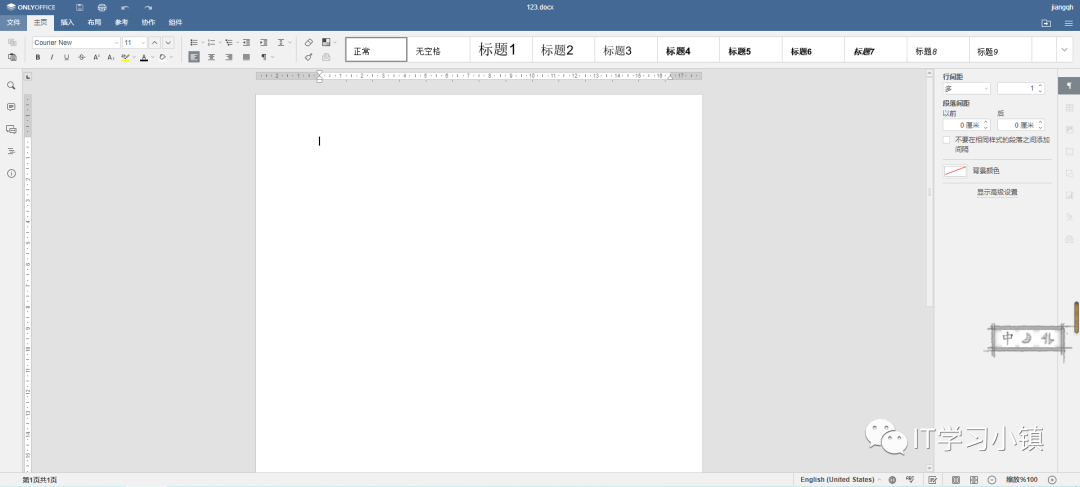
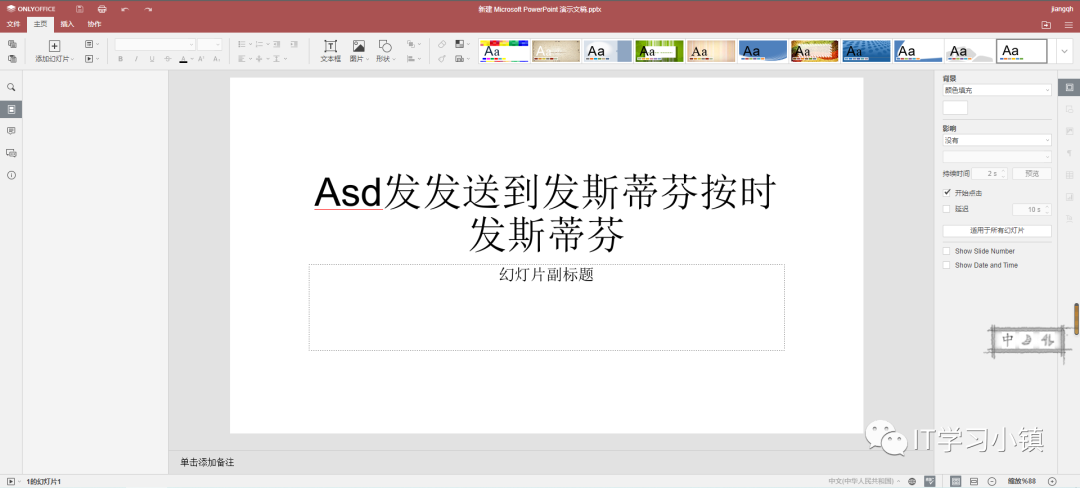
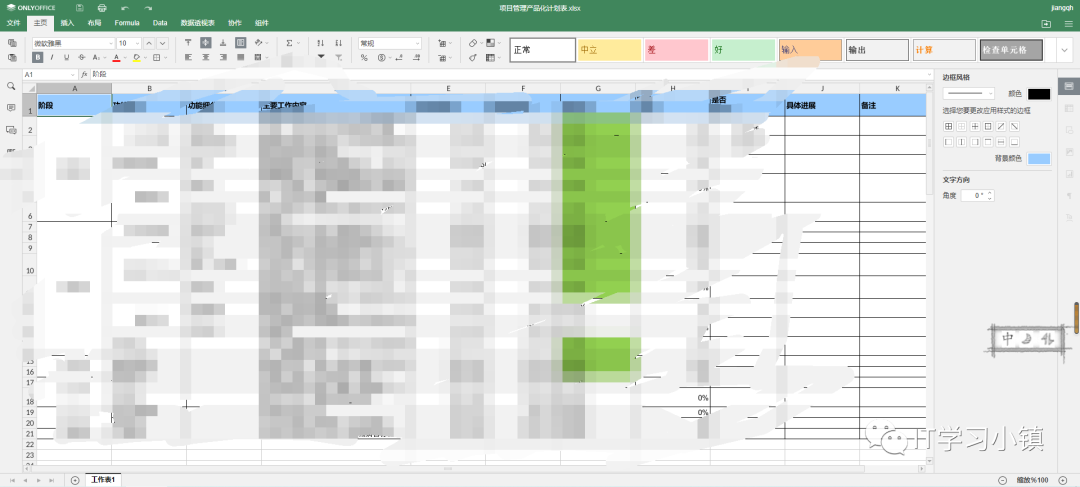
当我调用config接口时,打开不同类型的文件,展示返回html页面如下。


5
总结

1、要使用onlyoffice去在线编辑不难,主要是掌握config的配置。
2、它的一个工作流程:当我打开在线编辑时,接口设置数据返回html页面,并将数据拼接到config上。接着页面会根据config的url地址去下载源文件,最后将内容展示到html上。最后当我们修改完毕关闭了窗口时,会调用callbackurl的接口进行文件保存。



扫码二维码
获取更多精彩

更多推荐


 0
0 0
0- 0


 已为社区贡献1条内容

所有评论(0)