
macos big sur vmware 的 ubuntu11.10 虚拟机无法和主机(host)之间进行 复制和粘贴(copy and paste)的解决办法
常规方法(官网)
Mount CD Image and Extract Contents:
To mount the CD image and extract the contents follow the steps below:
- Power on the virtual machine.
- Log in to the virtual machine using an account with administrator or root privileges.
- Select:
For Fusion: Virtual Machine > Install VMware Tools.
For Workstation: VM > Install VMware Tools.
For Player: Player > Manage > Install VMware Tools.
Note: If you are running the light version of Fusion, a version of Workstation without VMware Tools, or VMware Player, you are prompted to download VMware Tools before they can be installed. Click Download Now to begin the download.
- Open the VMware Tools CD mounted on the Ubuntu desktop.
- Right-click the file name that is similar to VMwareTools.x.x.x-xxxx.tar.gz, click Copy, and select Ubuntu Desktop to copy the file.
- Right-click the file name that is similar to VMwareTools.x.x.x-xxxx.tar.gz on the Ubuntu Desktop, click Extract here.
The vmware-tools-distrib folder is extracted to the Ubuntu Desktop.
Install VMware Tools in Ubuntu:
To install VMware Tools in Ubuntu follow the steps below:
- Open a Terminal window. For more information, see Opening a command or shell prompt (1003892).
- In the Terminal, run this command to navigate to the vmware-tools-distrib folder:
cd Desktop/vmware-tools-distrib
- Run this command to install VMware Tools:
sudo ./vmware-install.pl
Note: Press Return to accept the defaults or supply your own answers.
Following command can be used " sudo chmod u+x vmware-install.pl " to make the file executable.
4.Enter your Ubuntu password.
- Restart the Ubuntu virtual machine after the VMware Tools installation completes
常规方法尝试多次无效
关键方法
在常规方法基础上进行:
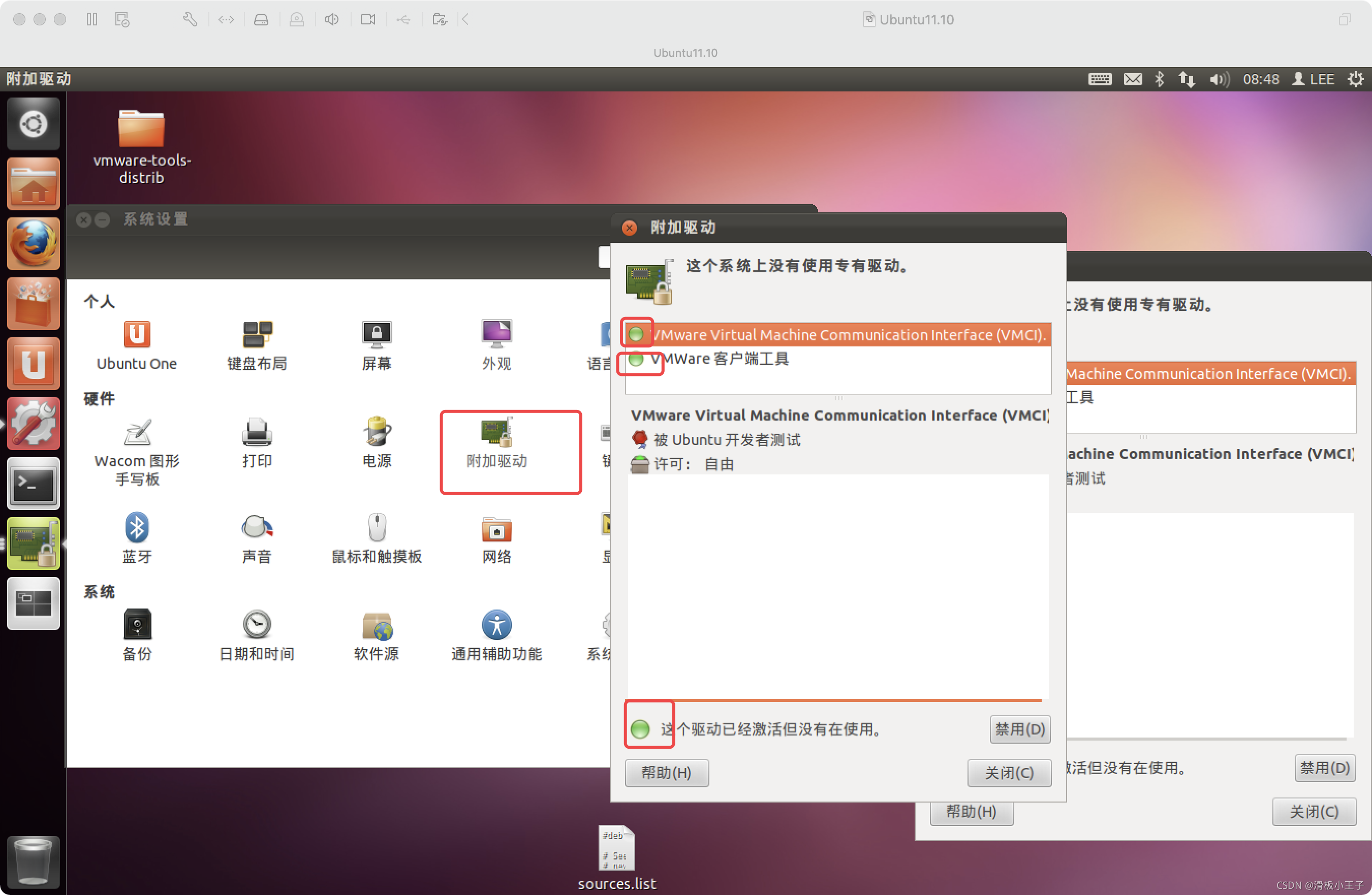
- 进入 系统设置==> 附加驱动 ;
- 激活所有和 vmware 相关的驱动;
- 默认情况下 “vmware客户端工具” 是没有激活的,激活过程中,会重新安装 vmware-tools;
- 重启虚拟机后,尽可以和主机进行 复制和粘贴了;
如图:
思考
也许可以使用 关键方法 完全代替 常规方法,因为先进行了常规方法,本人没来得及尝试,尝试过的同学,可以留言交流。
更多推荐

 0
0 0
0- 0


 已为社区贡献2条内容

所有评论(0)