
word标尺灰色_如何在Microsoft Word中更改标尺测量单位

word标尺灰色

In Word, you can select one of several units of measurement for the ruler. This is useful when you’re working on a document for someone who uses a different measurement system for margins, tabs, and so on. It’s an easy setting to change whenever you need to.
在Word中,您可以为标尺选择几种度量单位之一。 当您为使用不同的页边距,制表符等度量系统的人处理文档时,此功能很有用。 这是一个随时更改的简单设置。
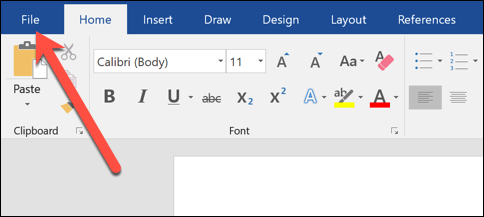
Switch over to the “File” tab on Word’s Ribbon.
切换到Word功能区上的“文件”选项卡。
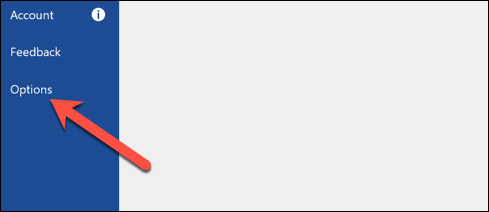
Click the “Options” command on the sidebar.
单击侧栏上的“选项”命令。
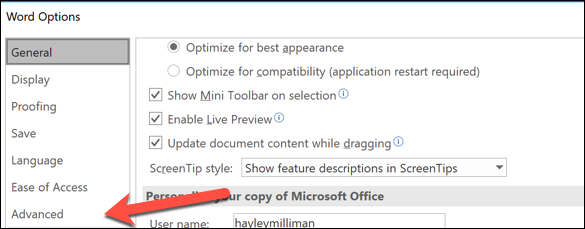
In the Word Options window, select the “Advanced” category on the left.
在“ Word选项”窗口中,选择左侧的“高级”类别。
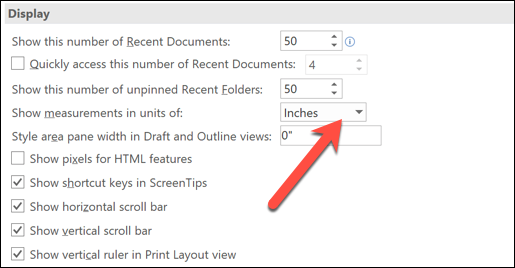
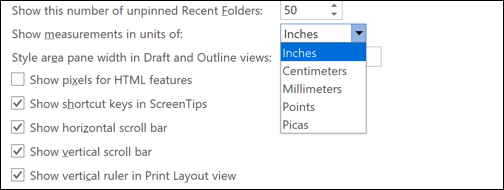
On the right, scroll down to the “Display” section and then click the drop-down menu to the right of the “Show measurements in units of” entry.
在右侧,向下滚动到“显示”部分,然后单击“以单位显示度量”条目右侧的下拉菜单。
On the drop-down menu, click the units you want to use.
在下拉菜单上,单击要使用的单位。
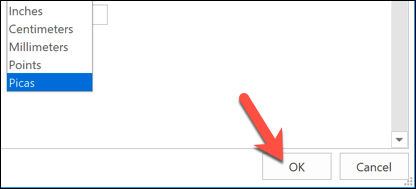
And then click the “OK” button.
然后单击“确定”按钮。
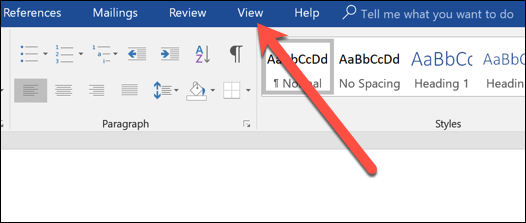
If your ruler is not displaying, switch to the “View” tab.
如果您的标尺未显示,请切换到“查看”选项卡。
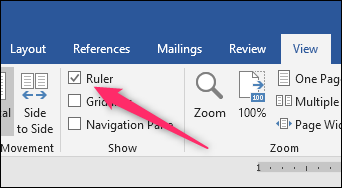
And then tick the “Ruler” checkbox there.
然后在此处勾选“统治者”复选框。
When you want to change back to your regular units of measurement, head back to the same setting in the Word Options window.
如果要更改回常规的度量单位,请回到“字选项”窗口中的相同设置。
翻译自: https://www.howtogeek.com/365153/how-to-change-the-ruler-measurement-unit-in-microsoft-word/
word标尺灰色
更多推荐


 0
0 0
0- 0


 已为社区贡献4条内容

所有评论(0)